
Testing
1. Introduction of Sanplex features
1.1. Core Management Framework
1.1.1 Program
1.1.2 Project
1.1.3 Product
1.1.4 Execution
1.1.5 Management Models
1.2. Dashboard
1.2.1 Getting Started with Tutorials
1.2.2 Quick Add
1.2.3 Notification Center
1.2.4 Effort Tracking
1.2.5 Dashboard - Project and Execution
1.2.6 Dashboard - My Work, Contribution, and Recents
1.2.7 Dashboard - Approval
1.2.8 Contacts
1.3. Program
1.3.1 Program List
1.3.2 Program Kanban
1.3.3 Create Program
1.3.4 Create Sub-Programs
1.3.5 Project Charter Management
1.4. Product
1.4.1 Create Product
1.4.2 Manage Modules
1.4.3 Multi-Branch and Multi-Platform Management
1.4.4 Manage Plans
1.4.5 Manage Requirements
1.4.6 Requirement Reviews
1.4.7 Requirement Status and Phase
1.4.8 Create Releases
1.4.9 Track Progress
1.4.10 Business Requirements and Multi-Level Requirements
1.5. Project
1.5.1 Scrum Project
1.5.2. Waterfall Project
1.5.2.1 Manage Project Phases
1.5.2.2 Project Design
1.5.2.3 Project Matrix
1.5.2.4 Project Reports and Earned Value Management
1.5.2.5 Project Baselines
1.5.2.6 Project Change
1.5.3. Kanban Project
1.5.3.1 Set Up Kanban Projects
1.5.3.2 Configure Kanban Boards
1.5.3.3 Use Kanban Boards
1.5.4 Hybrid Agile Project
1.5.5 Hybrid Waterfall Project
1.5.6. Project Settings
1.5.6.1 Project Setup
1.5.6.2 Project Executions
1.5.6.3 Project Requirements
1.5.6.4 Project Builds
1.5.6.5 Project Tests
1.5.6.6 Project Docs
1.5.6.7 Project Releases
1.5.6.8 Project Reports
1.5.6.9 Project Risks
1.5.6.10 Project Issues
1.5.6.11 Project Opportunities
1.5.6.12 Project Deliverables
1.5.6.13 Project Reviews
1.5.6.14 Project Process
1.5.6.15 Deliverables
1.5.6.16 Quality Assurance
1.5.6.17 Project-specific Workflow Management
1.5.7 Project Templates
1.6. Execution
1.6.1 Product Planning and Task Breakdown
1.6.2 Task Assignment and Daily Tracking
1.6.3 Build Creation and Test Requests
1.6.4 Bug Confirmation and Resolution
1.6.5 Execution Kanban Boards
1.7. Admin Settings
1.7.1. System Settings
1.7.1.1 Mode
1.7.1.2 Backup
1.7.1.3 Trash
1.7.1.4 License
1.7.1.5 Security
1.7.1.6 Cron Job
1.7.1.7 Time Zone
1.7.1.8 Rebuild Index
1.7.1.9 LDAP
1.7.1.10 Table Engine
1.7.2 Feature Options
1.7.3. Permission Management and Access Control
1.7.4. Agent Configuration
1.8. Asset Library (Premium)
1.8.1 Asset Library Management (Premium)

Verify and Close Bugs

2026-09-28 00:41:12
Sanplex Content
313
Last edited by Jing WANG on 2026-09-28 09:27:30
Share links
Summary: Learn how to confirm reported bugs, verify and close resolved bugs, activate closed bugs for further processing, copy existing bugs, and apply workflow and field updates to multiple bugs in batch.

In Sanplex, a typical bug workflow is:

Report Bug → Confirm Bug → Resolve Bug → Verify and Close Bug

After a bug is reported, the development team can confirm and resolve it. Once the bug has been resolved, testers can verify the fix and close the bug.

I. Confirm Bugs

After a bug is reported, click Confirm to acknowledge the bug and mark it as confirmed.

The Confirmed column shows whether a bug has been confirmed. Bugs that have not yet been confirmed display No, while confirmed bugs display Yes.
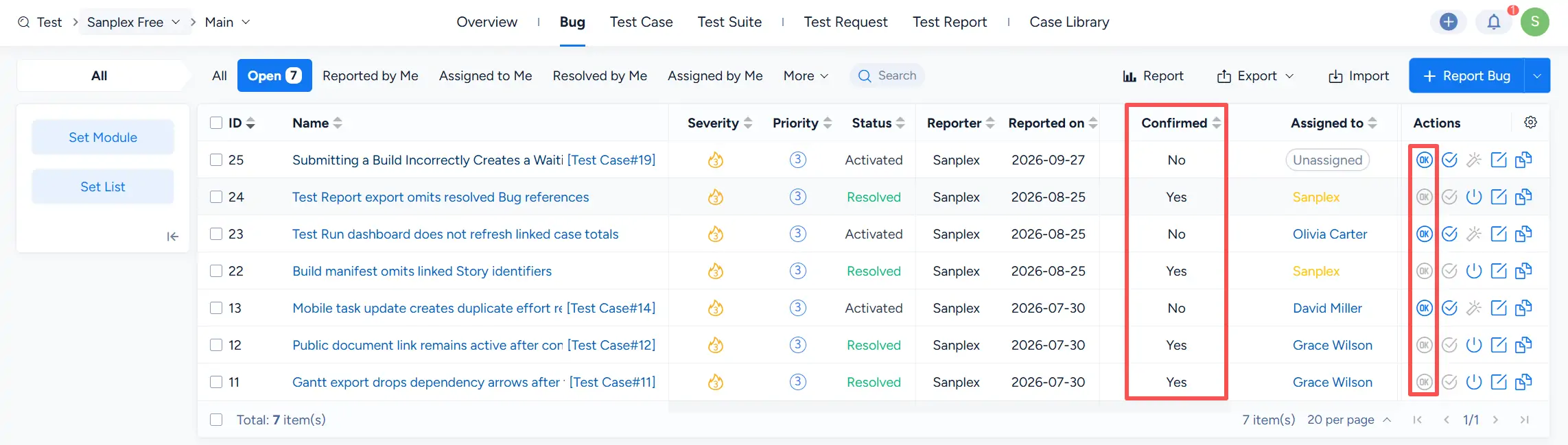
Sanplex Bug list showing the Confirmed column with Yes and No values and the Confirm action in the Actions column.

II. Close Bugs

After a bug reaches the Resolved status, testers can verify the fix. If the verification is successful, click Close in the Actions column to close the bug.

A closed bug is displayed with the Closed status.
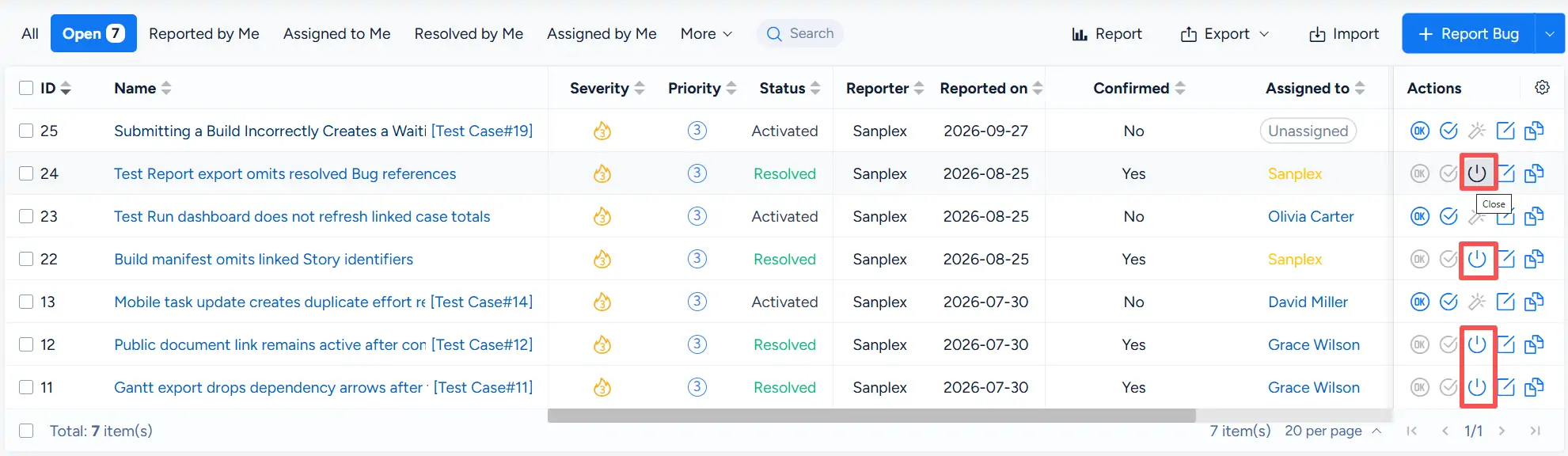
Sanplex Bug list showing Close actions for bugs in Resolved status.

III. Activate Closed Bugs

If a closed bug requires further processing, click Activate in the Actions column to reopen it for follow-up.
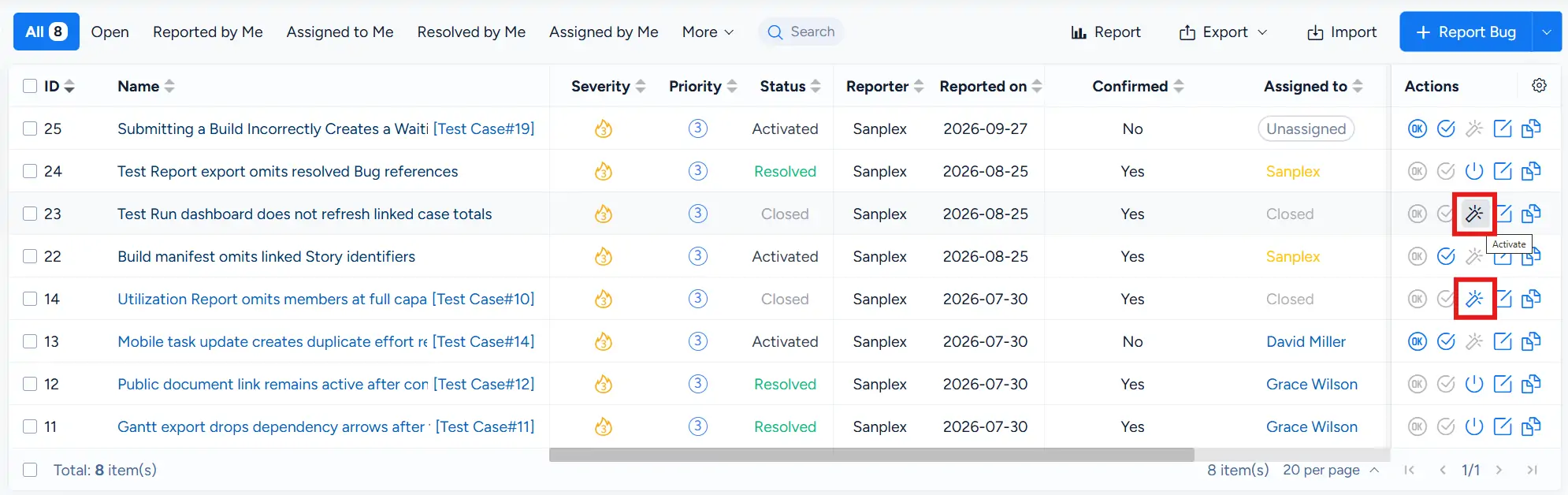
Sanplex Bug list showing the Activate action for bugs in Closed status.

IV. Copy Bugs

Click Copy Bug in the Actions column to create a new bug based on an existing bug.

This is useful when you need to create a similar bug record while retaining information from the original item as a starting point.
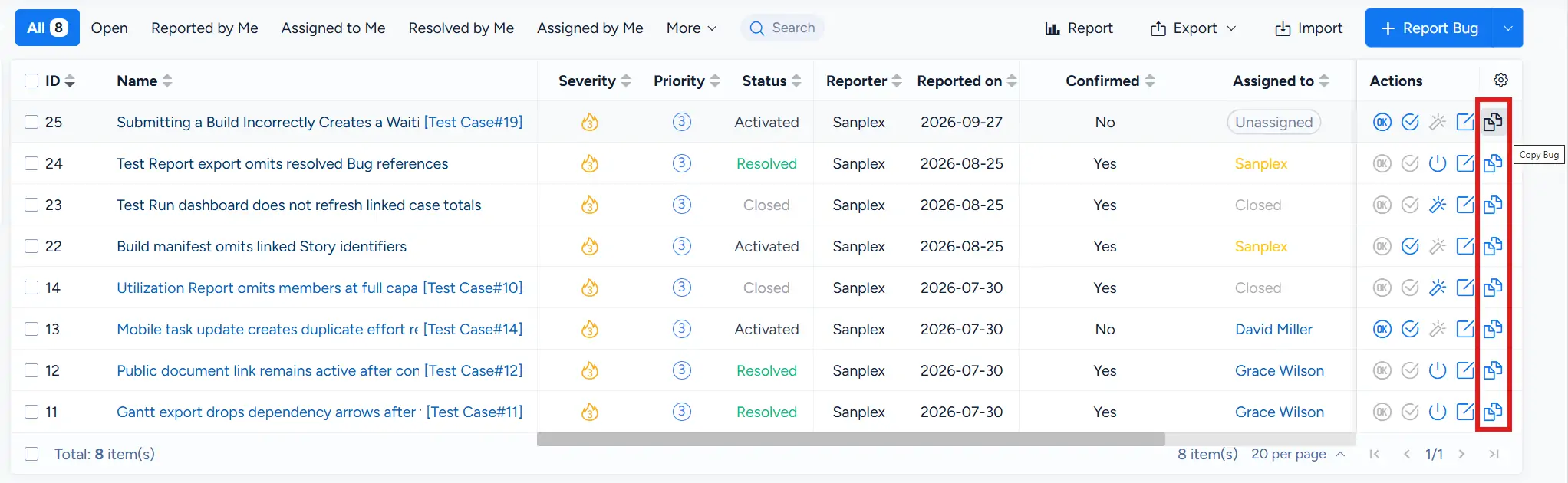
Sanplex Bug list with the Copy Bug action highlighted in the Actions column.

V. Batch Edit Bugs

On the Bug list, select multiple bugs to access batch operations.

Sanplex provides batch controls for fields such as Branch, Module, and Assigned to. From the Edit menu, you can also perform workflow actions including:

  • Confirm
  • Close
  • Activate
  • Resolve

When selecting Resolve, you can choose the appropriate resolution from the available options.
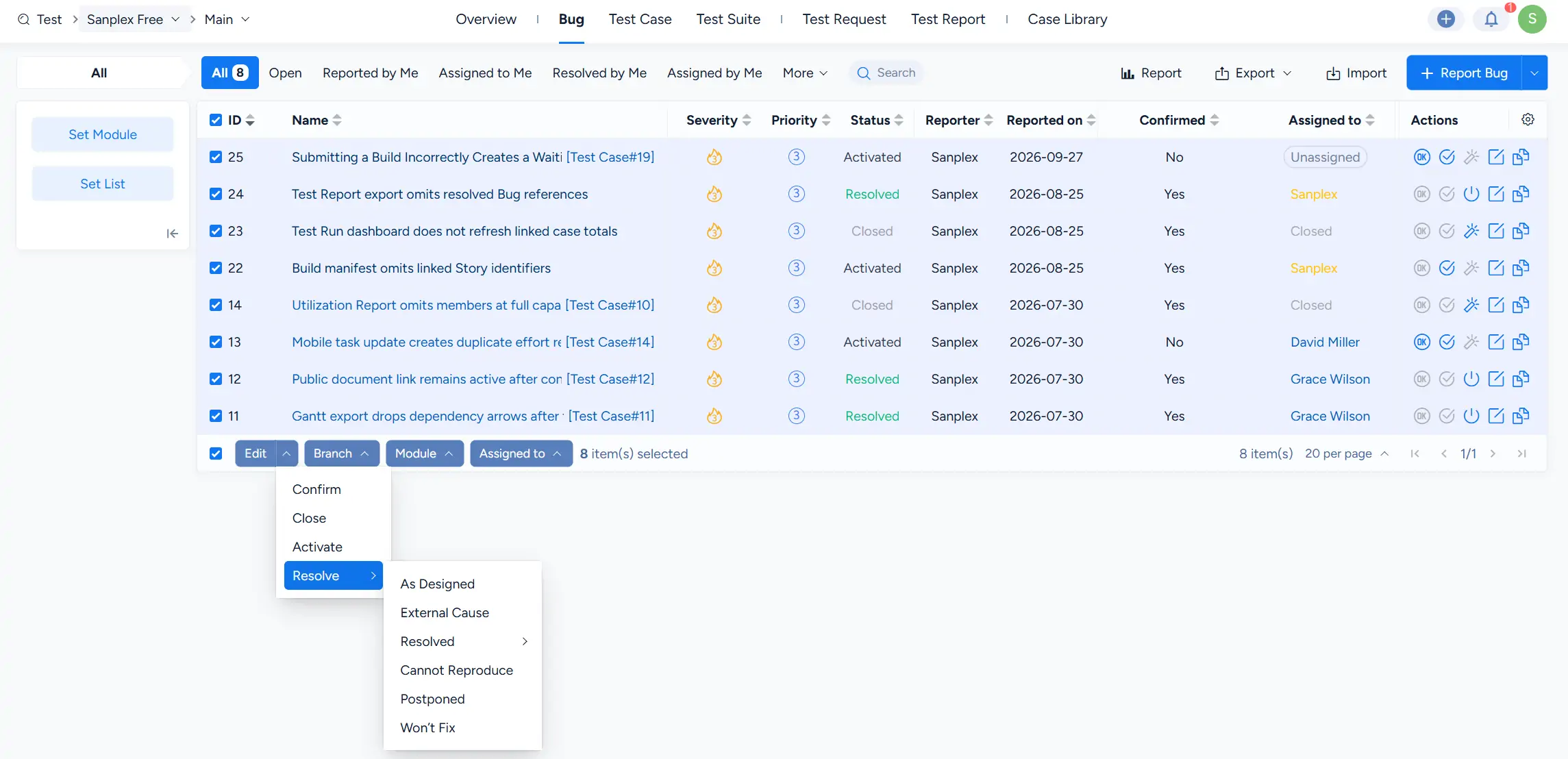
Sanplex Bug list with multiple bugs selected and batch controls for Edit, Branch, Module, and Assigned to, with the Edit menu expanded to show Confirm, Close, Activate, and Resolve actions.

Write a Comment
Comment will be posted after it is reviewed.
