Catalog
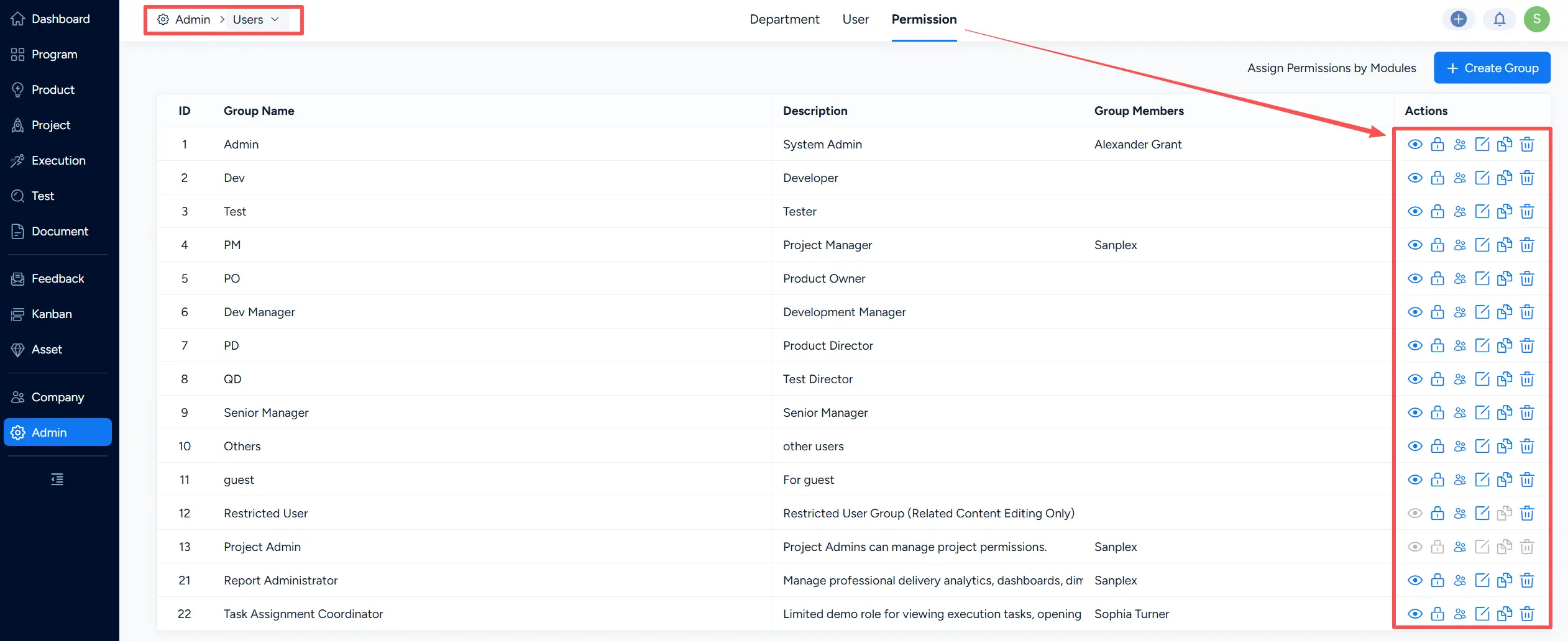
Under Admin > Users > Permission, administrators can manage permission groups and configure the access and actions available to each group.
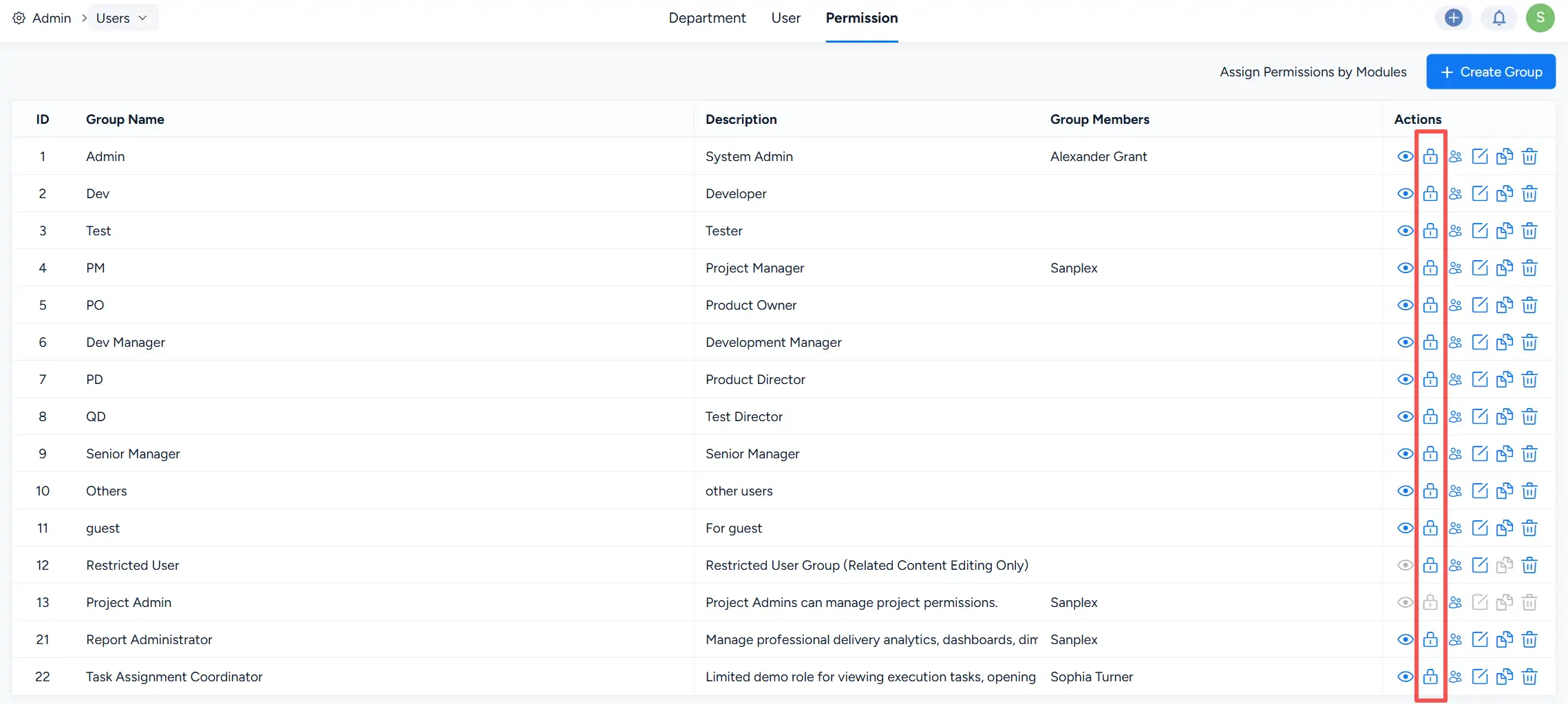
The Actions column provides controls for managing each permission group:
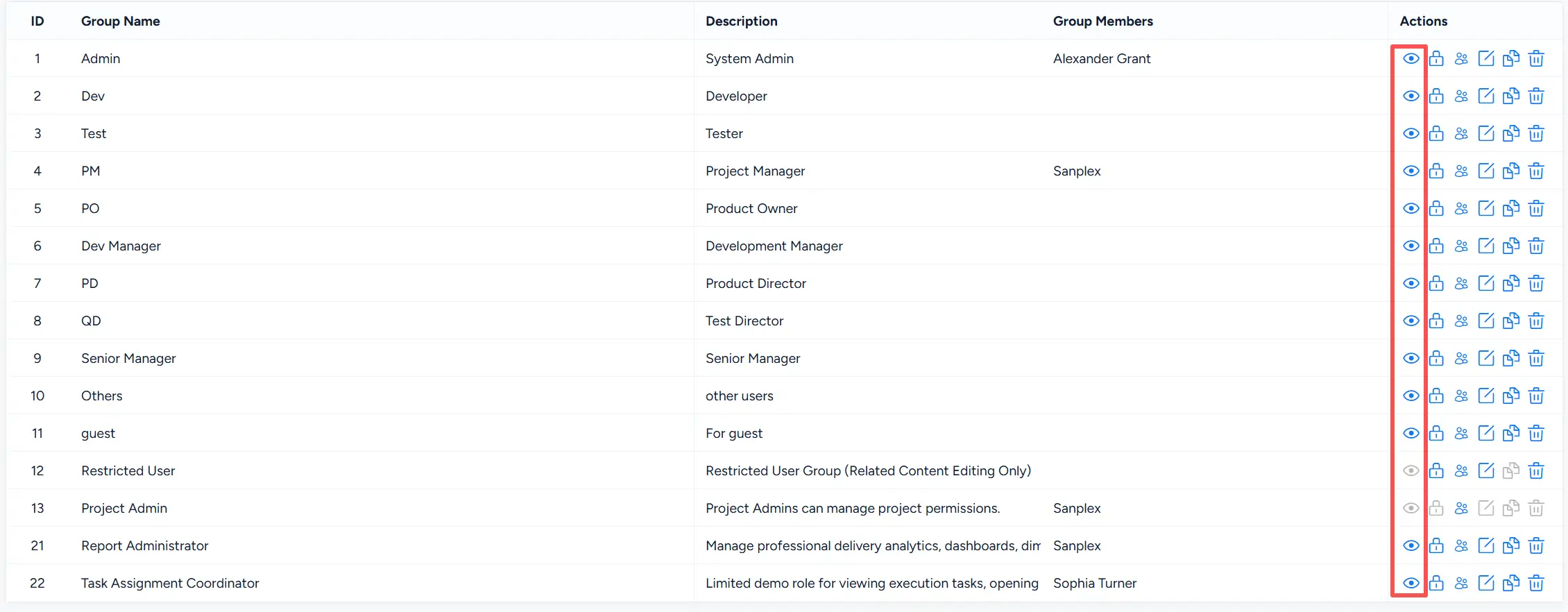
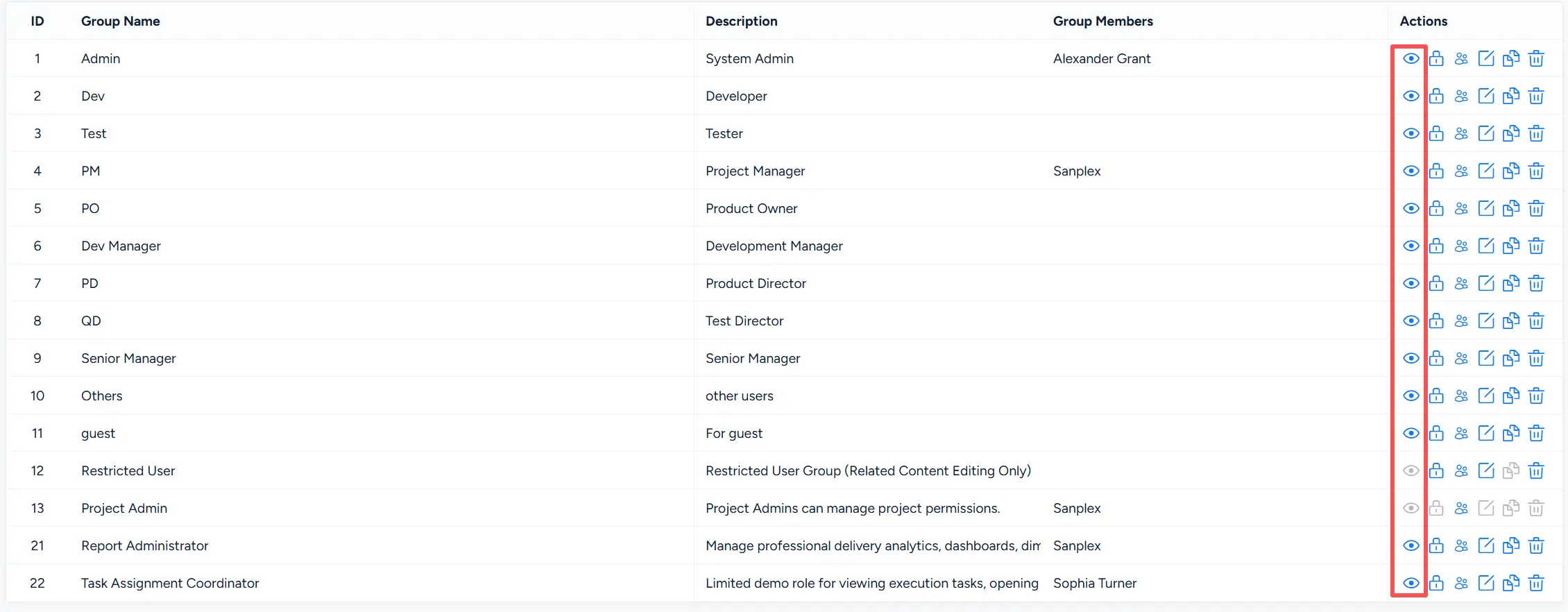
- View Permissions: Configure which views and objects the group can access.
- Assign Permissions: Configure the actions and operations that members of the group can perform.
- Manage Members: Manage the users assigned to the permission group.
- Edit Group: Modify the group information.
- Copy Group: Create a new group based on an existing permission group.
- Delete Group: Remove the permission group.
I. View Permissions
Click the View Permissions action for a permission group to configure which Sanplex areas and objects its members can access.
1. Accessible Views
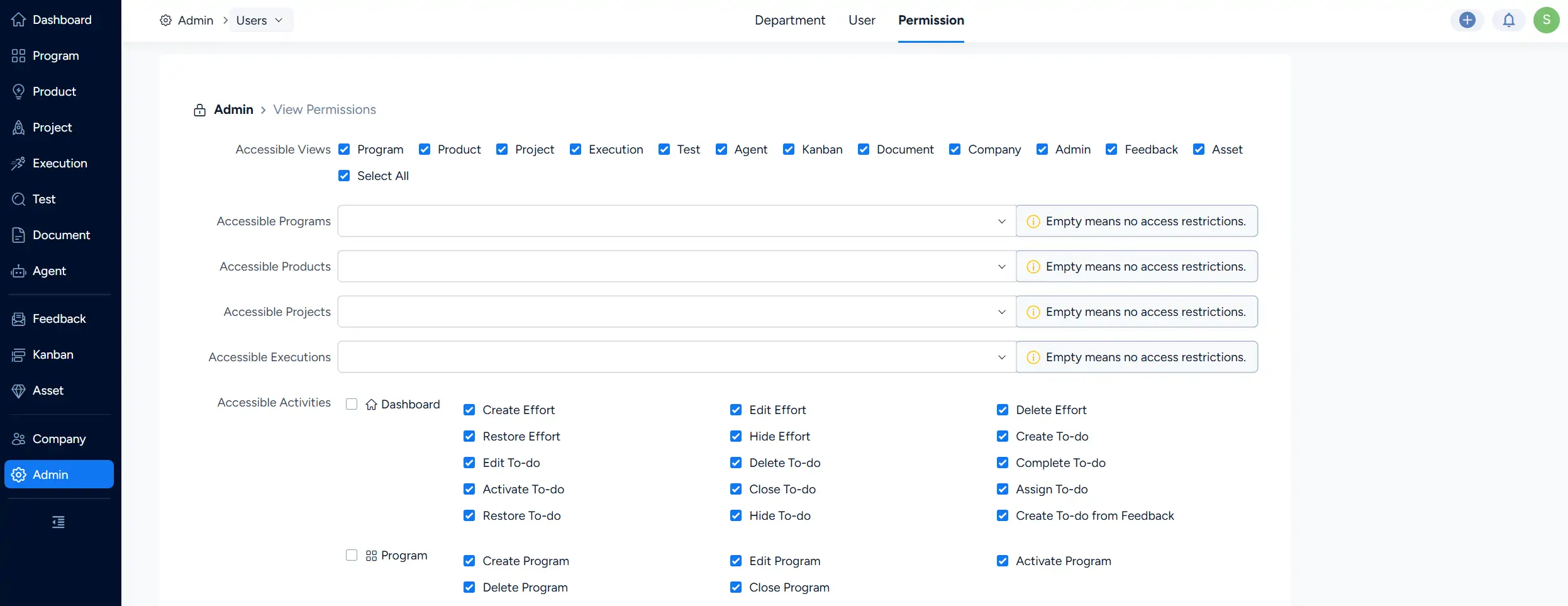
On the View Permissions page, use Accessible Views to select the Sanplex areas that members of the permission group can access.
Available views include areas such as Program, Product, Project, Execution, Test, Agent, Kanban, Document, Company, Admin, Feedback, and Asset.
You can select individual views or use Select All.
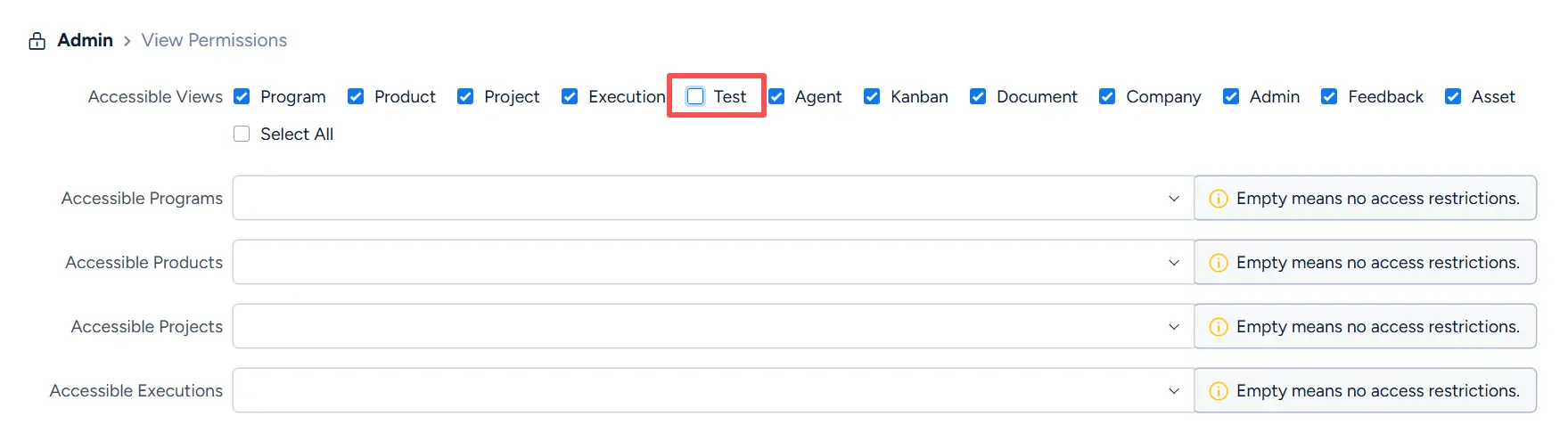
Clear a view to remove access to that area for members of the permission group. For example, if Test is cleared, members of the group will not have access to the Test view.
2. Accessible Programs, Products, Projects, and Executions
In addition to views, you can restrict access to specific:
- Programs
- Products
- Projects
- Executions
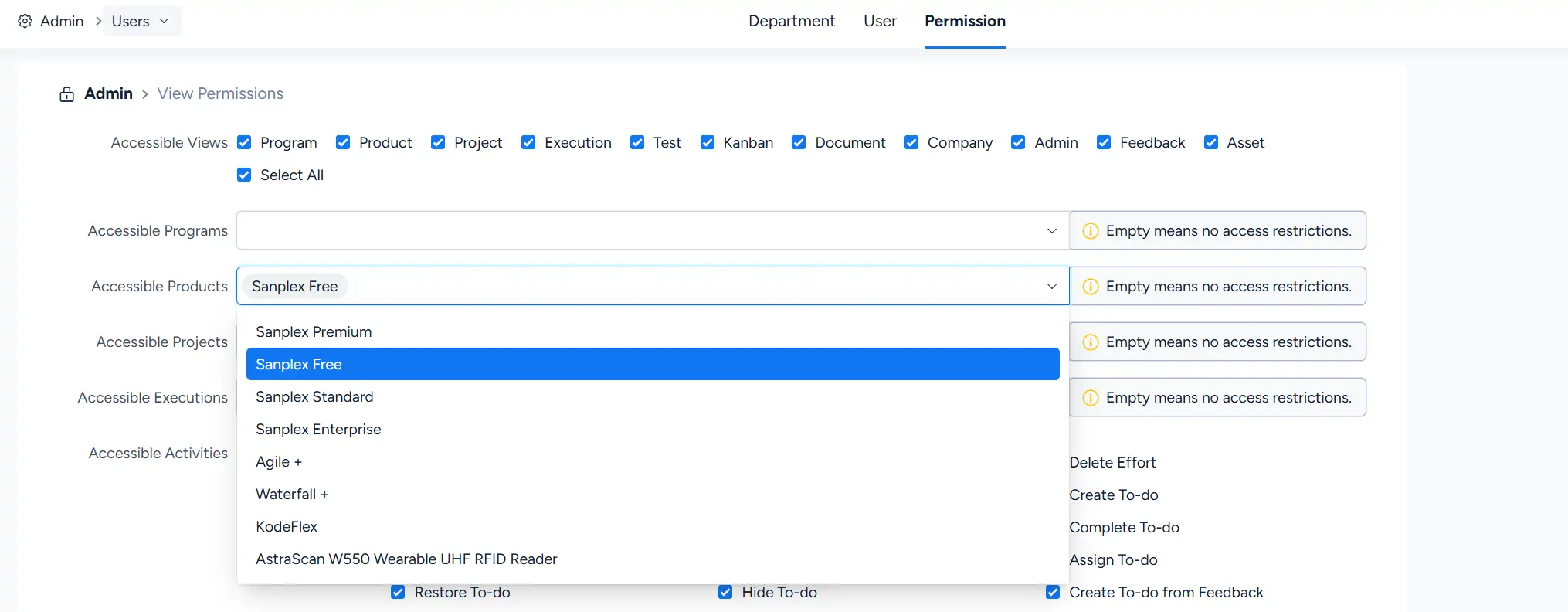
For example, in Accessible Products, select Sanplex Free to limit the group to that product.
If an access field is left empty, Sanplex applies no access restriction for that object type, as indicated by the message Empty means no access restrictions.
The same configuration applies to Accessible Programs, Accessible Projects, and Accessible Executions.
Object access also works together with the action permissions assigned to the group. Users must have the appropriate permission to perform operations on the objects they can access.
II. Assign Permissions
Go to Admin > Users > Permission, then click the permission action for the group you want to configure.
1. Assign Permissions
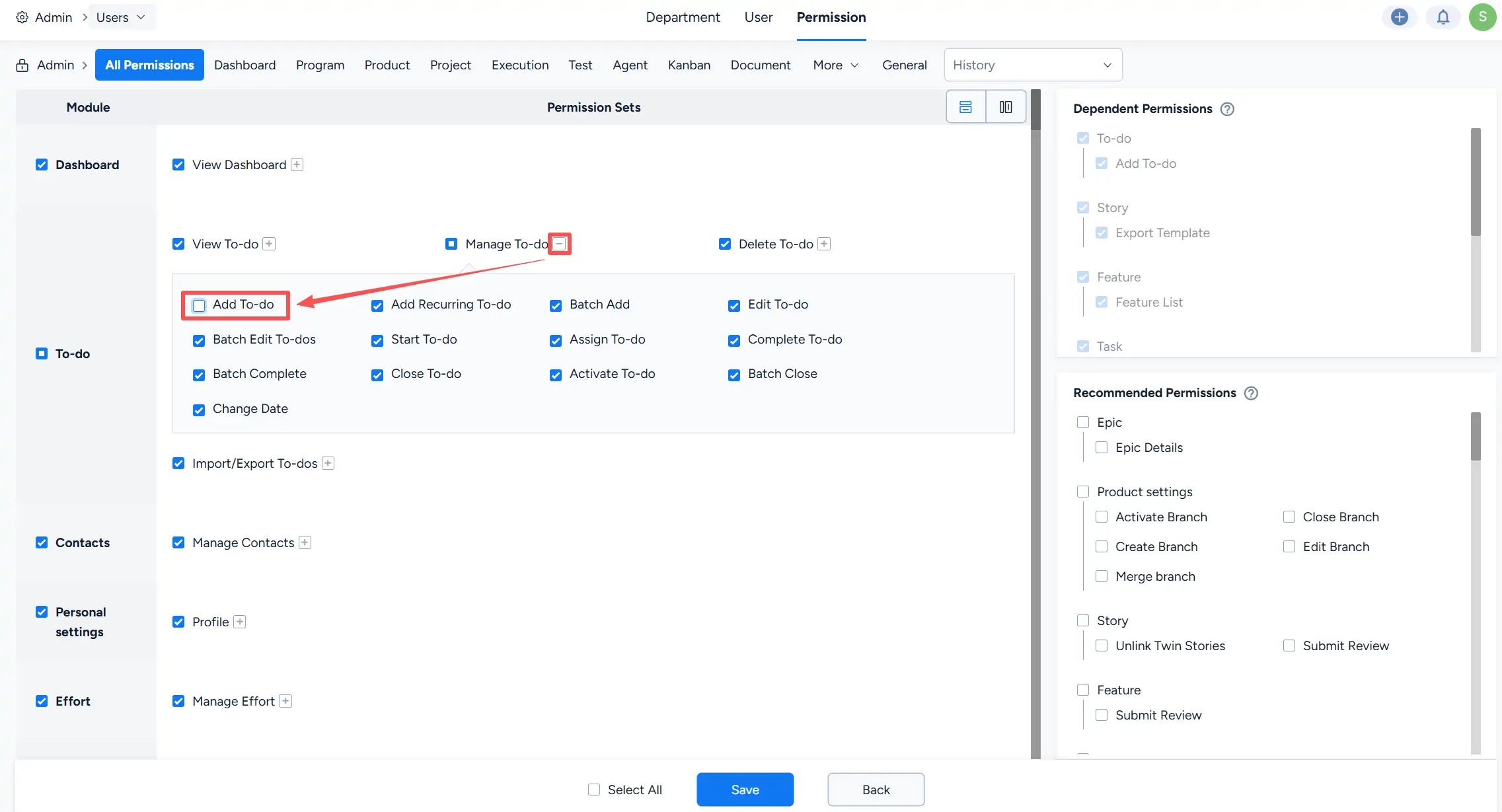
The permission configuration page allows administrators to control actions at the module and permission-set level.
Permissions are organized by Sanplex areas and modules. Select or clear individual permissions according to the responsibilities of the group.
For example, if Add To-do is cleared, members of the group will not have permission to add to-dos.
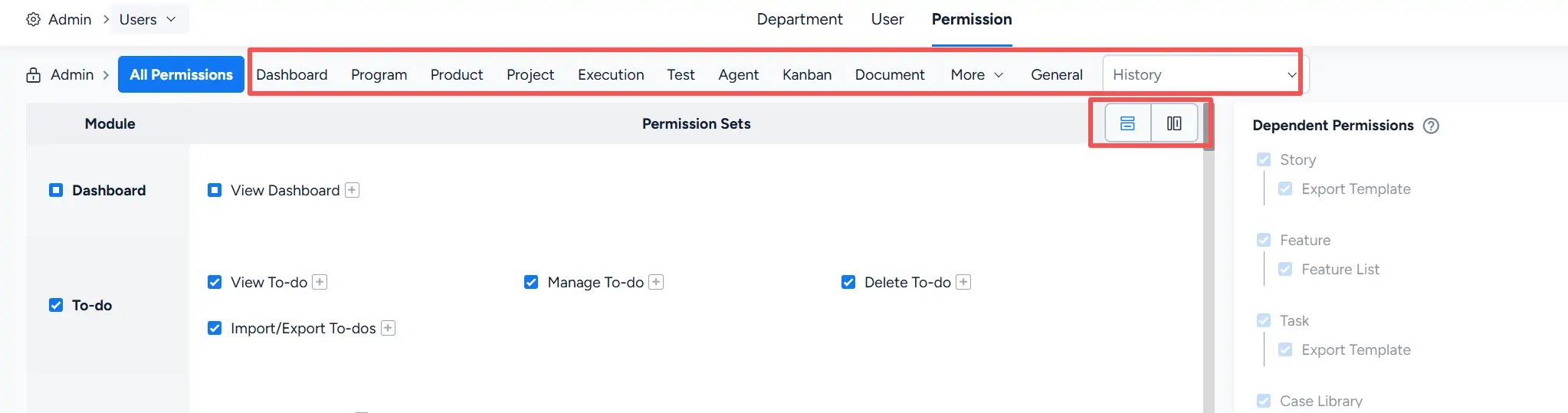
Use the module tabs across the top of the page to move between permission areas such as Dashboard, Program, Product, Project, Execution, Test, Agent, Kanban, and Document. Additional areas are available under More.
The controls in the upper-right corner of the permission area allow you to switch how permission sets are displayed.
2. Dependent Permissions
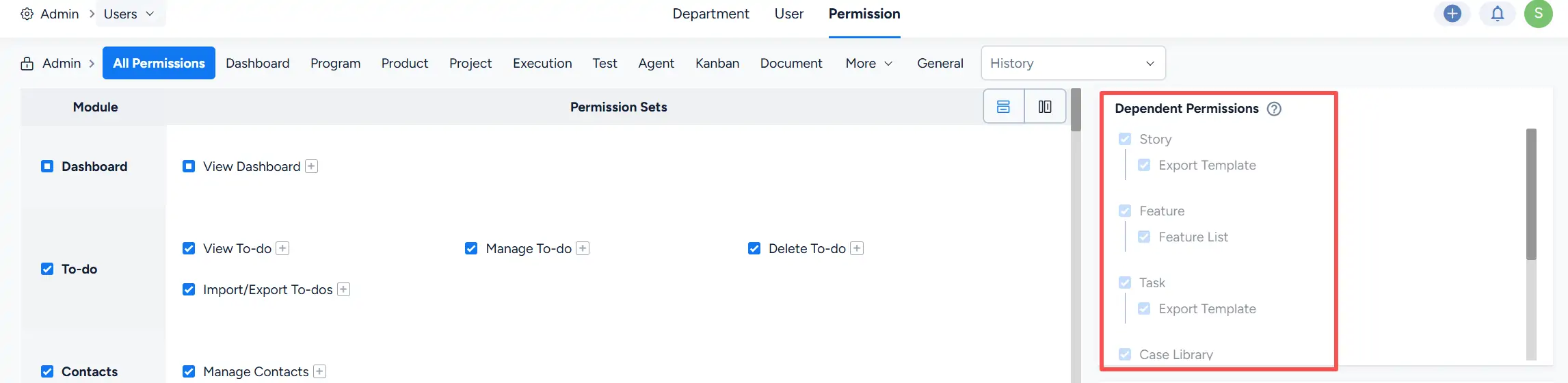
Some permissions depend on other permissions to work together correctly.
When a selected permission requires related access, Sanplex displays the corresponding permissions in the Dependent Permissions panel on the right side of the page.
This helps ensure that the permissions required by the selected configuration are included.
3. Recommended Permissions
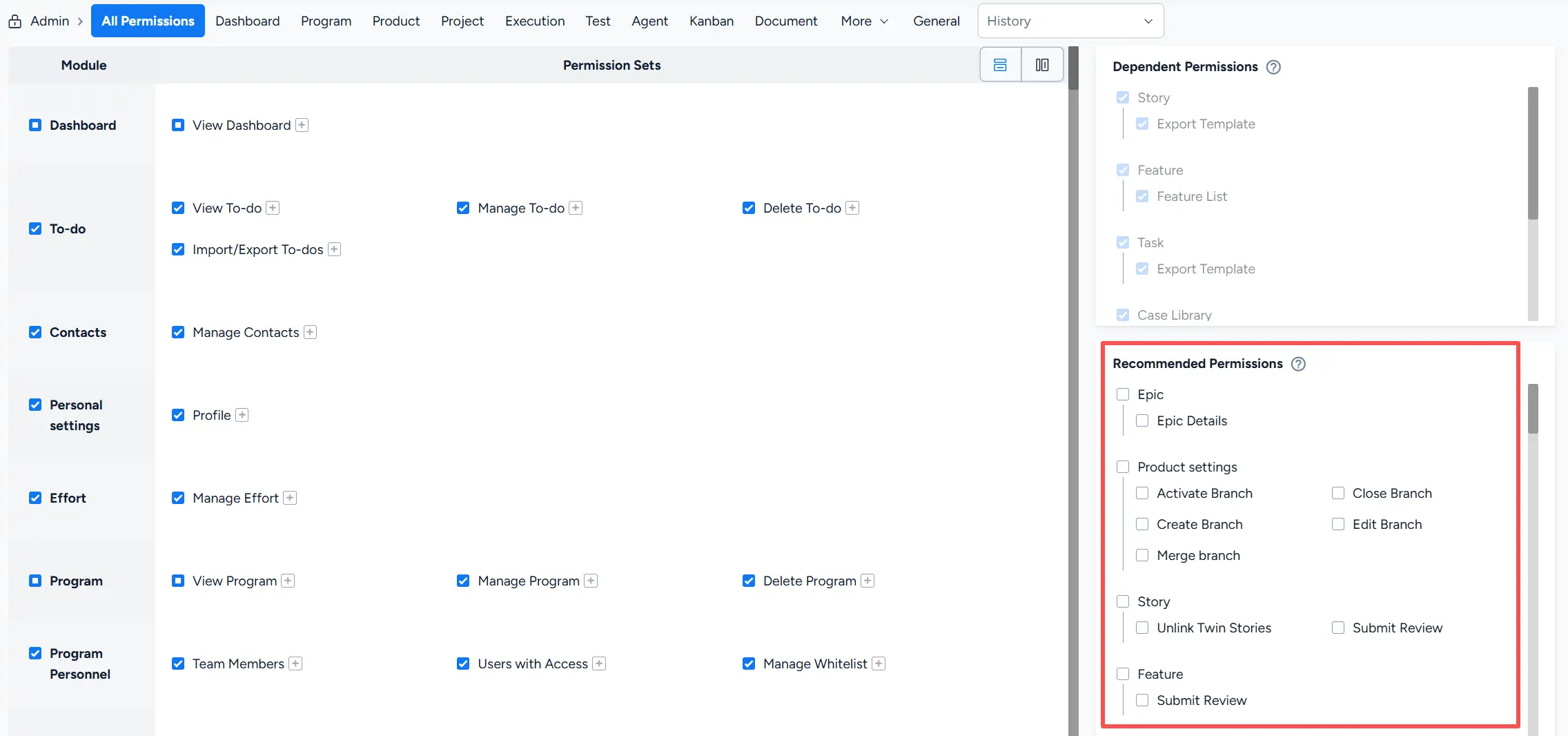
Sanplex also provides Recommended Permissions based on the current permission configuration.
These permissions are displayed separately from required dependencies so that administrators can review additional permissions that may be useful for the group.
For example, the panel can recommend related permissions for Epic, Product settings, Story, or Feature.
Select the recommended permissions that are appropriate for the responsibilities of the group.
III. Permission Descriptions
1. Restricted User Group
The Restricted User group is intended for users who should have limited editing permissions for related content.
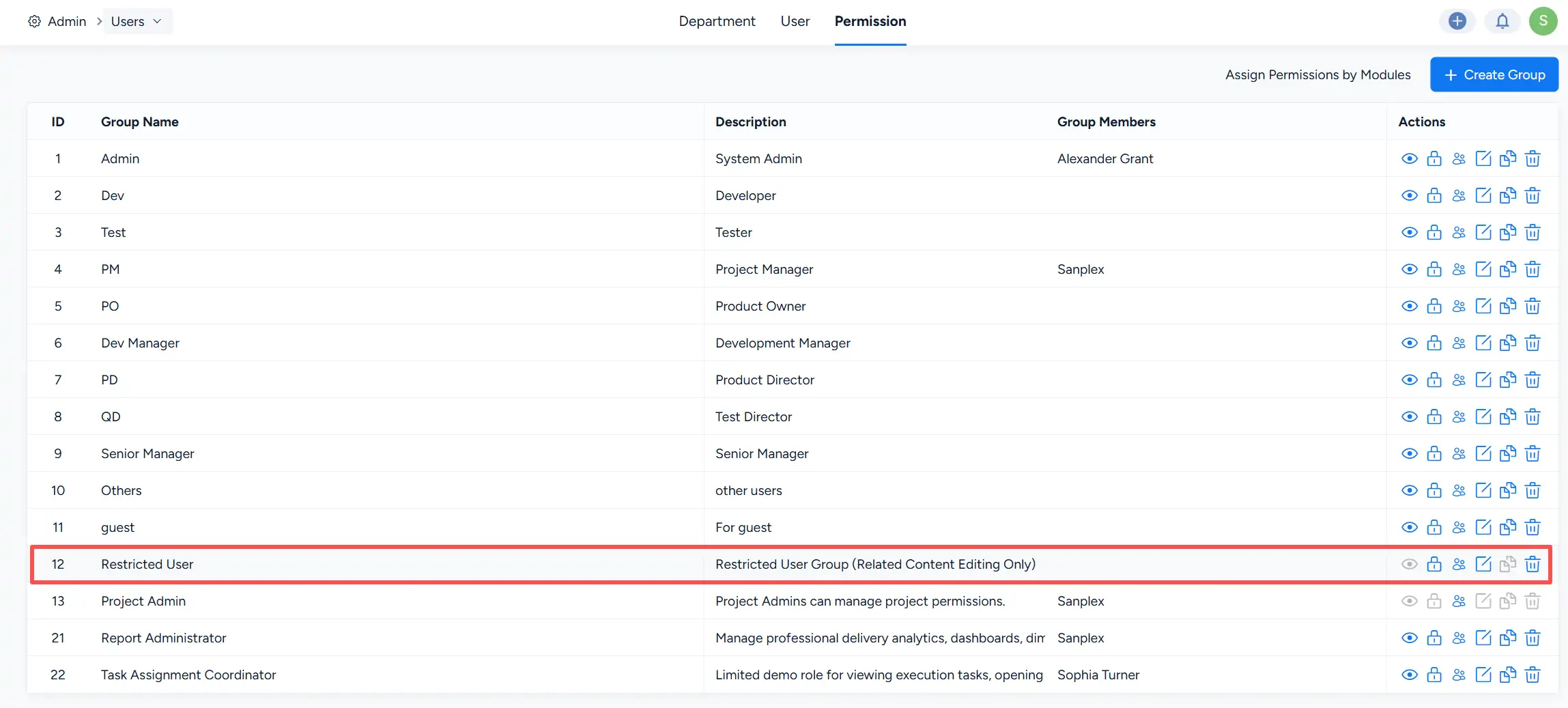
Users in this group can edit items related to themselves, such as stories, tasks, and bugs, while creation and other operations are restricted according to the permissions assigned to the group.
“Related to themselves” includes items that are:
- assigned to the user;
- completed by the user;
- canceled by the user;
- closed by the user; or
- last edited by the user.
Items on which the user is only copied are not considered related content.
If an existing user is added to the Restricted User group, the relationship between that user and previously created or processed items remains available for permission evaluation.
The Restricted User group configured under Admin > Users > Permission applies at the system permission-group level. Restricted access configured within a specific project or execution applies to that corresponding scope.
This group can be used when users should work only with content directly related to their responsibilities.
2. Product, Program, Project, and Execution Permissions
Permission groups work together with the access controls configured for individual programs, products, projects, and executions.
Product Access Control
- Public: Users with the appropriate product permissions can access the product.
- Private: Access is limited to the users associated with the product and related work.
- Whitelist: Access can be granted to specified users.
Top-level Program Access Control
- Public: Users with the appropriate program permissions can access the program.
- Private: Access is limited to the program owner and related stakeholders.
Sub-program Access Control
- Fully public: Users with the appropriate program permissions can access the sub-program.
- Public within program: Access is available within the corresponding program scope.
- Private: Access is limited to the sub-program owner and related stakeholders.
Independent Project Access Control
- Permission Control:
Inherit: Uses the applicable inherited permissions together with the project configuration.
Redefine: Uses the permissions defined for the project. - Access Control:
Public: Users with the appropriate project permissions can access the project.
Private: Access is limited to the project team and related stakeholders.
Program-bound Project Access Control
- Permission Control:
Inherit: Uses inherited permissions together with the project configuration.
Redefine: Uses the permissions defined for the project. - Access Control:
Fully public: Users with the appropriate project permissions can access the project.
Public within program: Access is available within the associated program scope.
Private: Access is limited to the project team and related stakeholders.
Execution Access Control
- Inherit from project access: Users with access to the project can access the execution according to the inherited configuration.
- Private: Access is limited to the execution team and other users included by the corresponding project or execution configuration.
3. Guest Permission Group
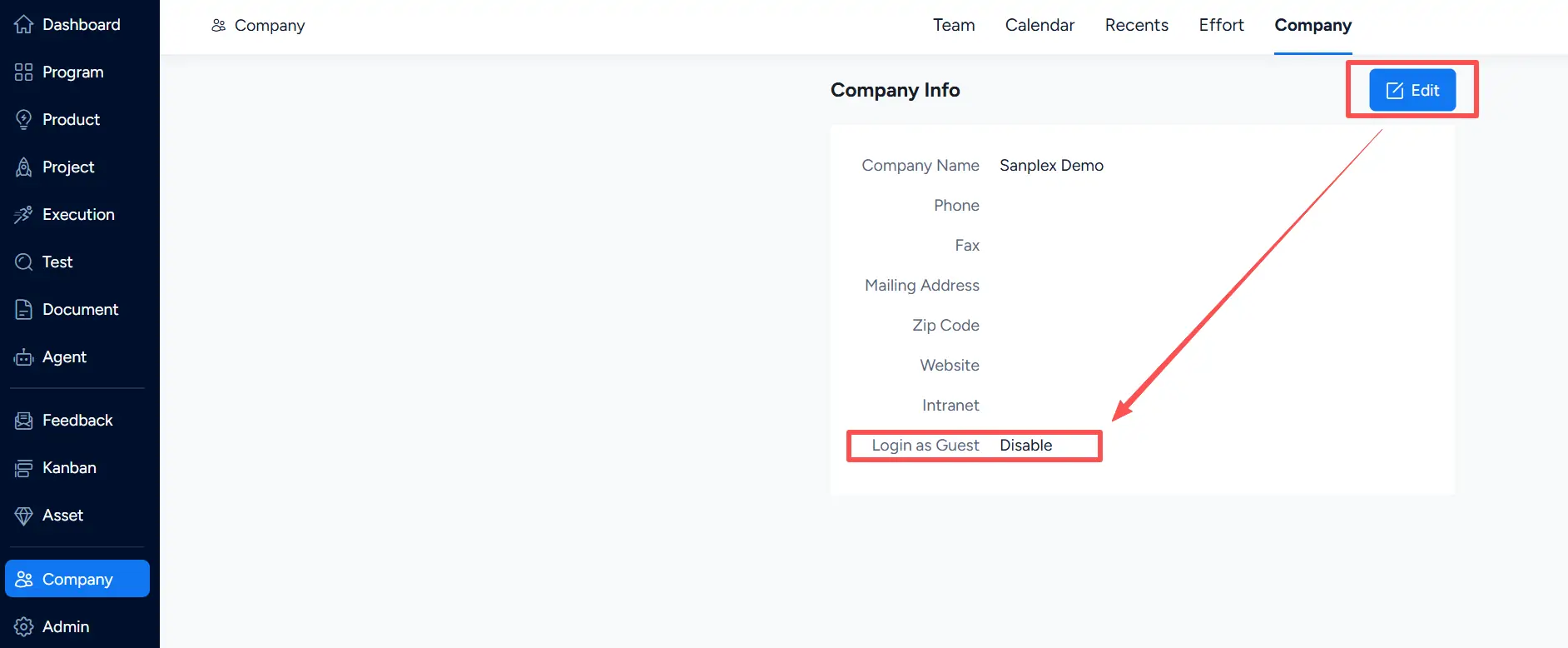
Sanplex provides a Login as Guest setting for controlling guest access.
Go to Company > Company and click Edit to configure Login as Guest.
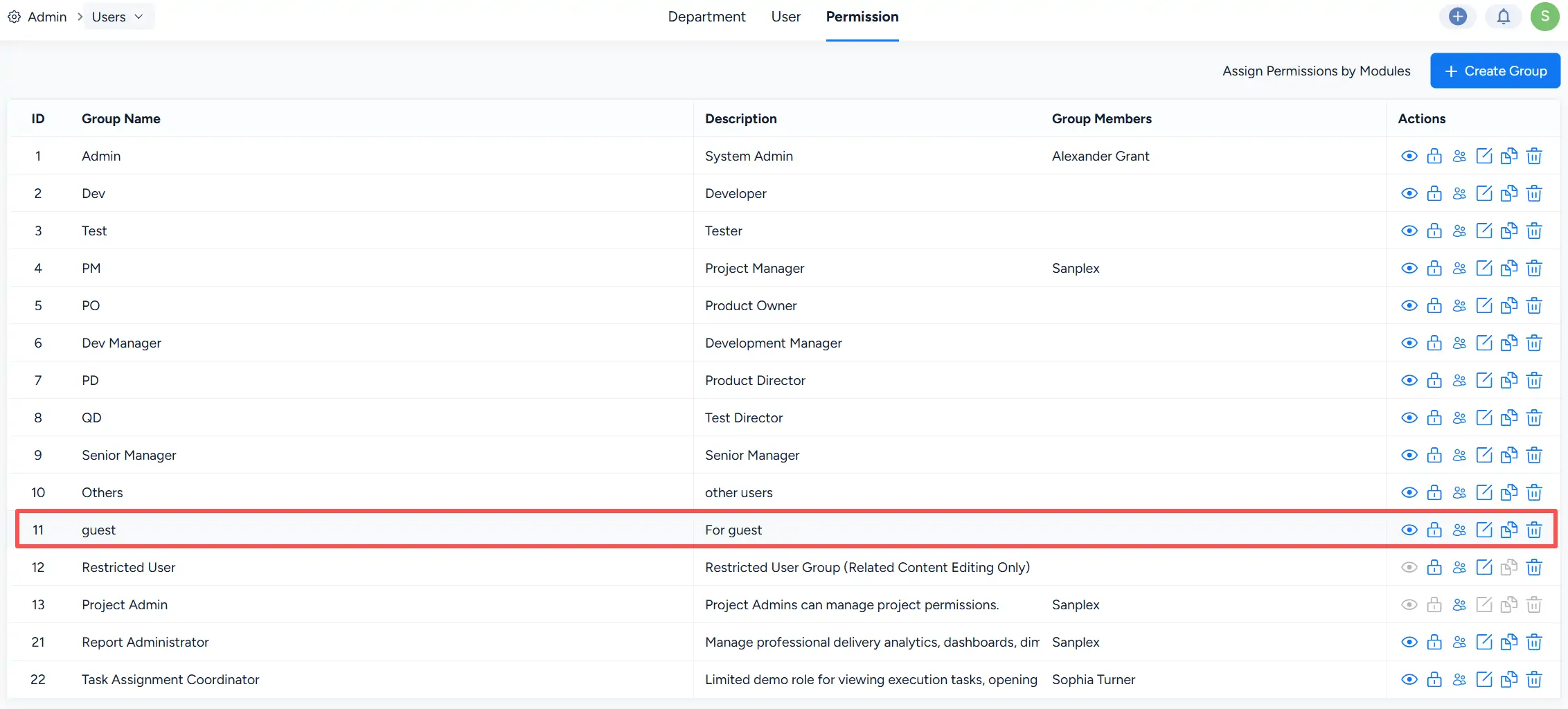
The guest permission group is available under Admin > Users > Permission. Configure the permissions assigned to this group to control the areas and actions available through guest access.
4. Project Administrator Permission Group
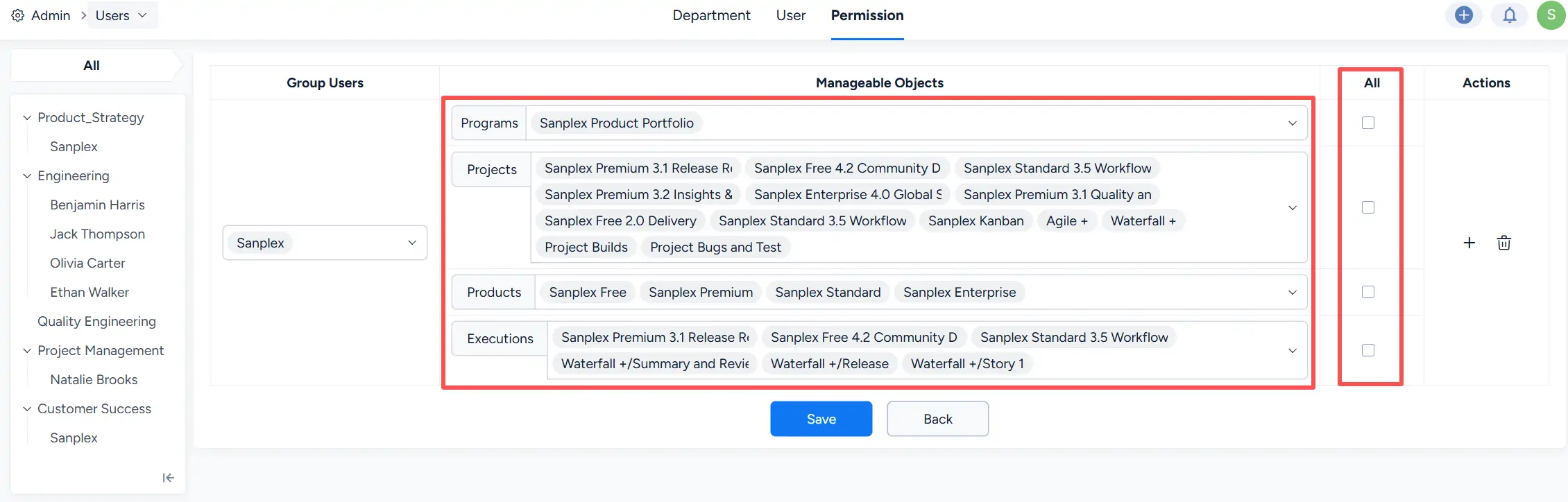
The Project Admin permission group provides a convenient way to assign selected users management access to specified Sanplex objects.
On the permission group list, locate Project Admin and use the Manage Project Admin action.

On the Project Admin management page, select the Group Users and configure the Manageable Objects that each user is allowed to manage.
Manageable object types include:
- Programs
- Projects
- Products
- Executions
You can select individual objects for each type. Use the corresponding All checkbox to allow the user to manage all objects of that type.
Click Save after completing the configuration.