Catalog
Sanplex Workflow lets you customize the fields, actions, layouts, and data of built-in processes, extend or override them, and create personalized workflows for your organization.
I. Terminology
- Workflow: A functional module in Sanplex, such as a product view, project view, or test view.
- Field: A database field or a data item displayed on a page, such as Name, Created, or Assigned to.
- Action: A specific capability, such as Create, Review, or Reject.
- Condition: The condition that determines whether a button or action is displayed or available, such as Status = Wait.
- Extended Action: The data or fields that are updated after an action is executed.
- Verification: A message shown to users when specified variables or fields have certain values as an action is executed.
- Notification: The users who receive email notifications when an action is executed.
- Layout: The interface displayed for an action, including its fields and field positions.
- Data Source: The source of options for dropdowns and similar controls. It can be a built-in data source, System User, Department, Custom, SQL, Category, or Prev Flow.
- Rule: A data-format validation method. Regular expressions are supported.
- Sub Table: A table used to store detailed record information for a workflow.
- List: A tab on a workflow list page. Users can browse and view workflow data through these tabs.
- Sub-workflow: A second-level menu displayed after the main workflow menus. A sub-workflow cannot contain another sub-workflow.
II. Create a Workflow
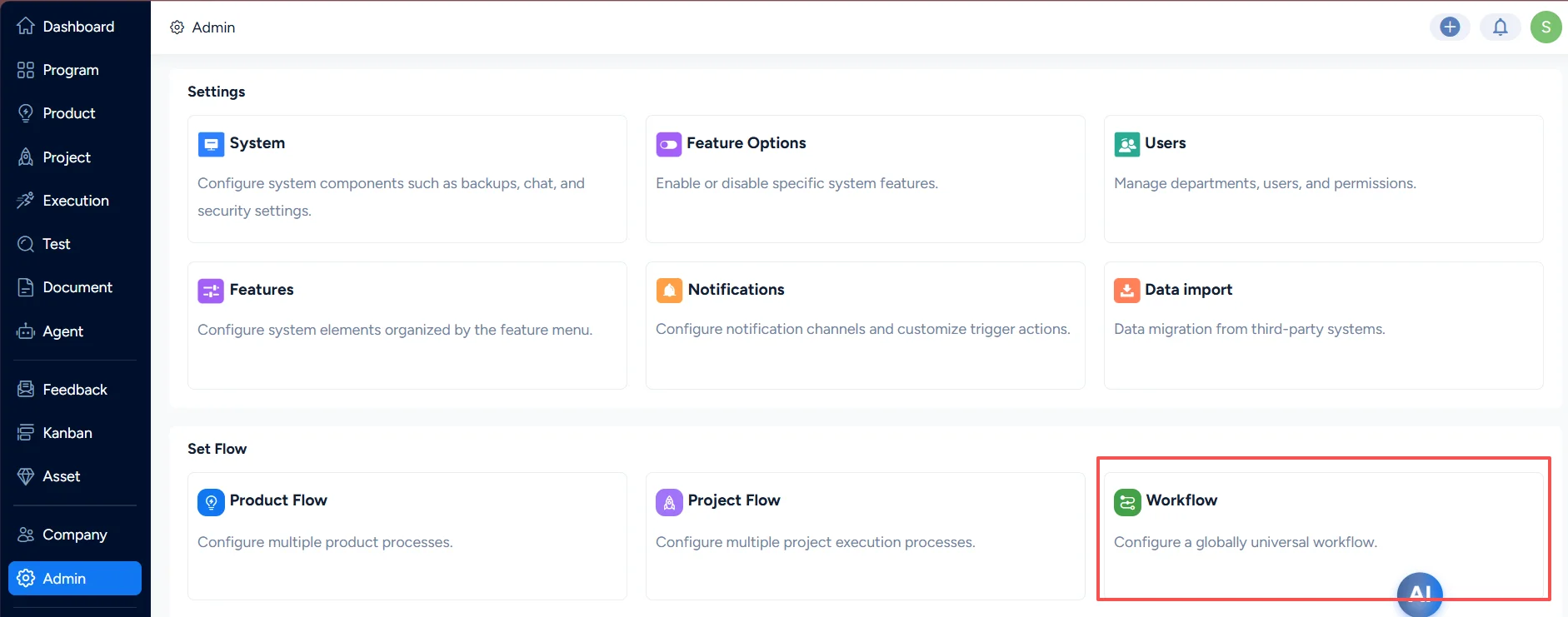
Go to Admin > Workflow to configure a globally available workflow.
Click Create Flow in the upper-right corner to add a new workflow.
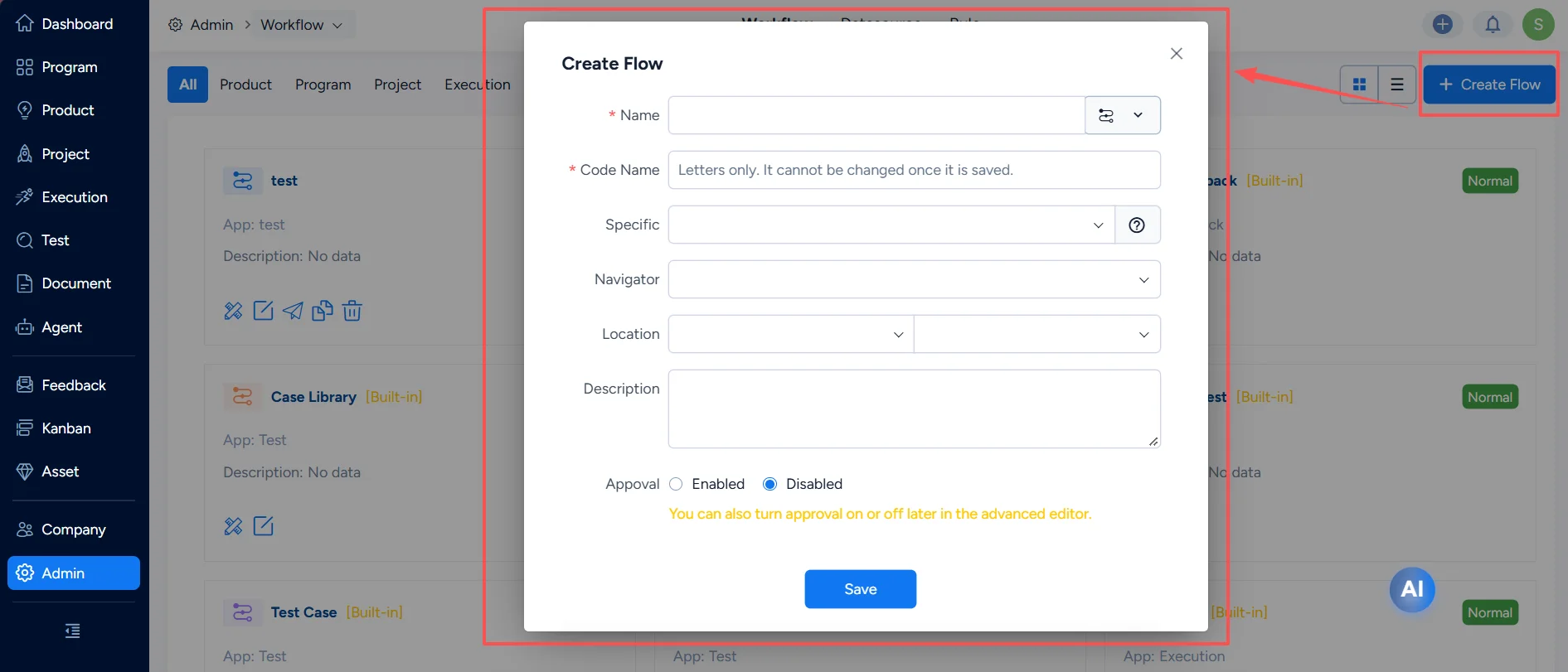
- Name: The name of the workflow.
- Icon: The icon displayed in the navigation after the workflow is released.
- Code Name: Letters only. Spaces and special characters are not allowed. Once saved, the code name cannot be changed.
- Specific: Select Program, Product, Project, or Execution. Leave it empty if the workflow does not need a parent object.
- Navigator: Display the workflow in the left primary navigation or the top secondary navigation.
- App: If the workflow is displayed in the secondary navigation, select the app under which it appears.
- Location: Set the display position.
- Description: A brief introduction to the workflow.
- Appoval: Choose whether approval is enabled. You can also turn approval on or off later in Advanced Editor.
If Workflow A is set to Specific = Product, each record in Workflow A must select a Product. The upper-left corner of the Workflow A list page can switch between products, and only users with permission for a product can see its data. A workflow can be used by a corresponding process template only after Specific is set to Product, Project, or Execution.
III. Advanced Editor
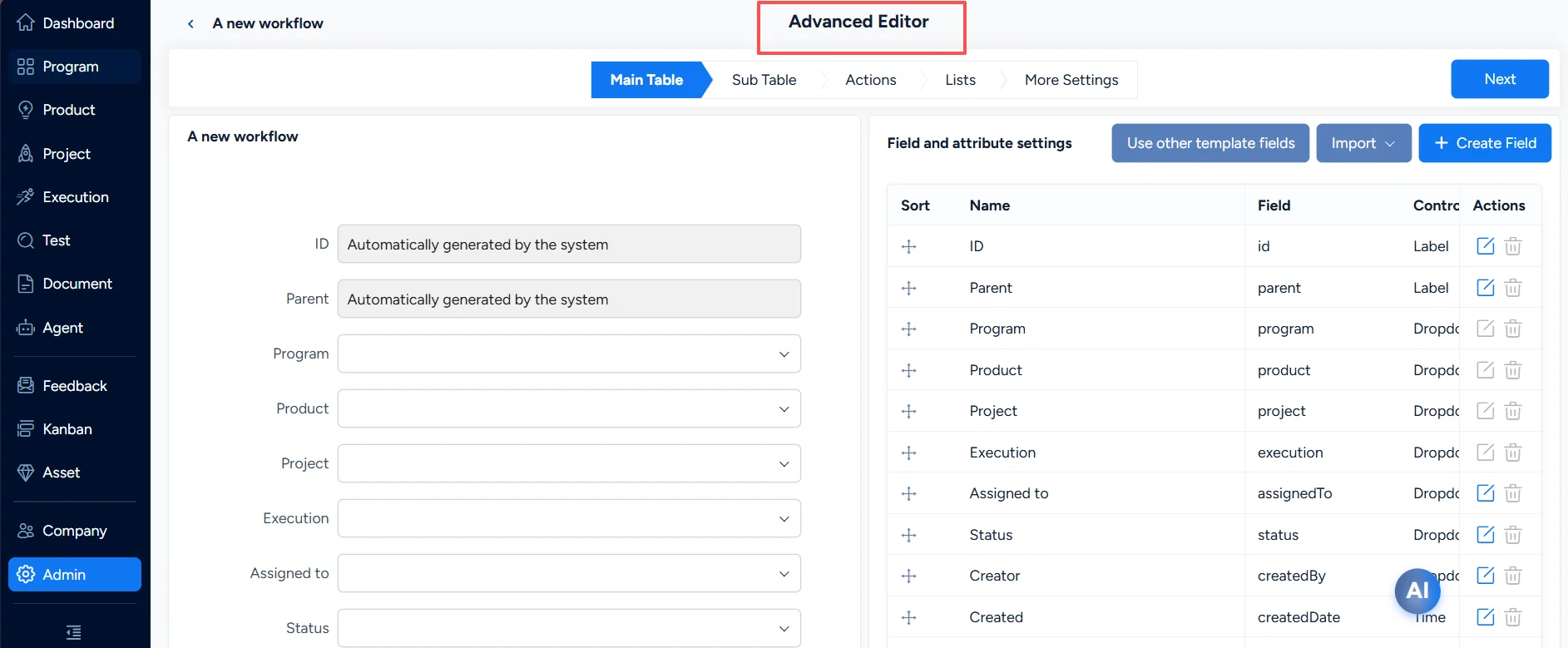
Advanced Editor provides detailed workflow configuration, including Main Table, Sub Table, Actions, Lists, and More Settings. More Settings includes Approval, Relations, Report Settings, Display Values, Export Settings, Search Settings, Full-Text Retrieval, JS, and CSS.
1. Main Table Design
The database table created with the workflow is its main table. The main table includes built-in fields that cannot be deleted. You can continue adding the fields you need.
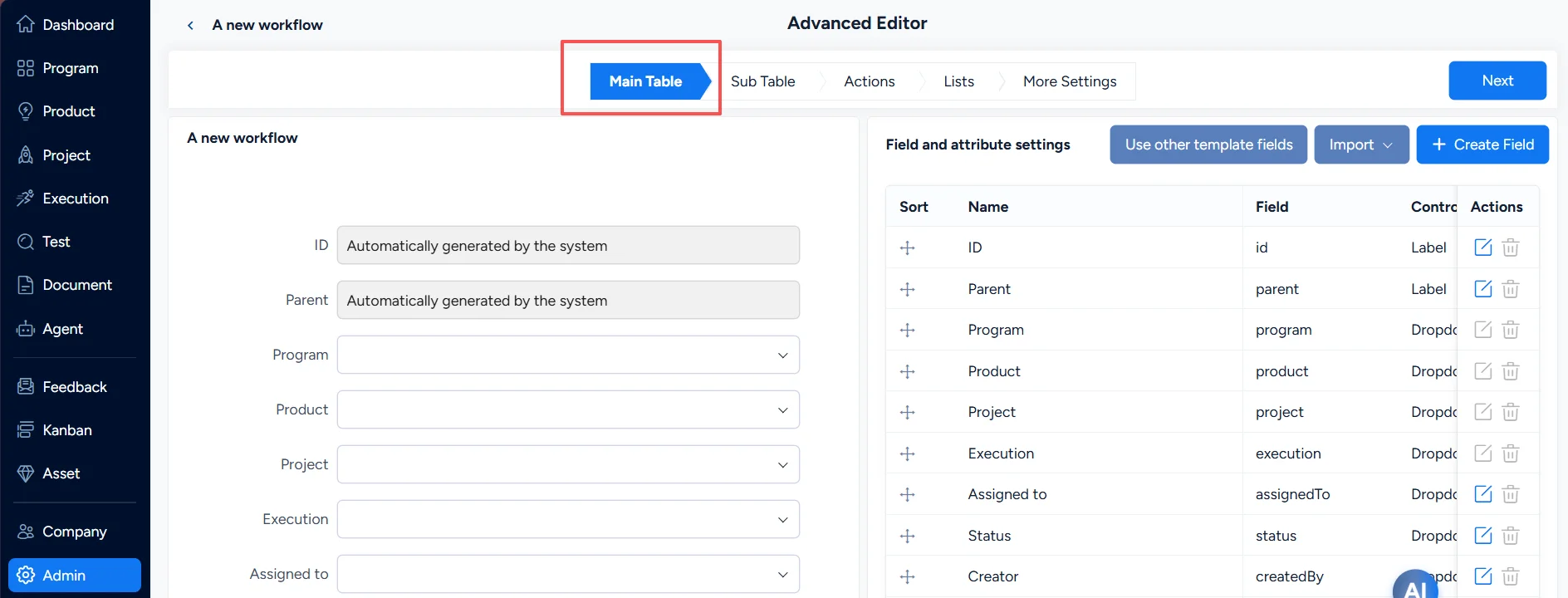
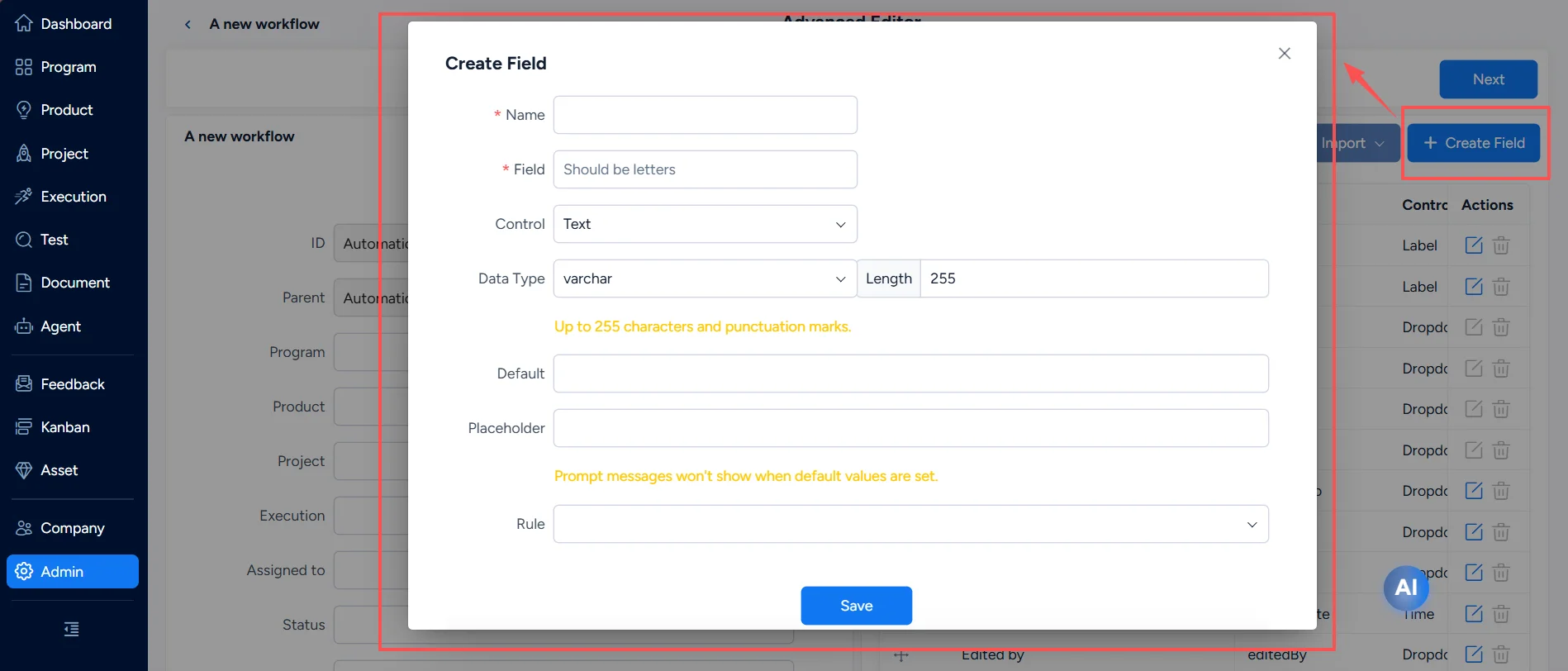
1.1 Maintain Fields
Field controls:
- Decimal and Integer are numeric controls.
- Time provides hour, minute, and second selection in addition to date selection.
- File is used for fields that require file uploads.
- Expression calculates values automatically according to the configured formula. Formula targets must be numeric fields.
- Dropdown, Multi-Dropdown, Radio, and Checkbox require a data source.
Data sources:
- System User and Department use users and departments from Sanplex.
- Custom lets you define key-value pairs, such as Status = Wait, Approved, or Rejected.
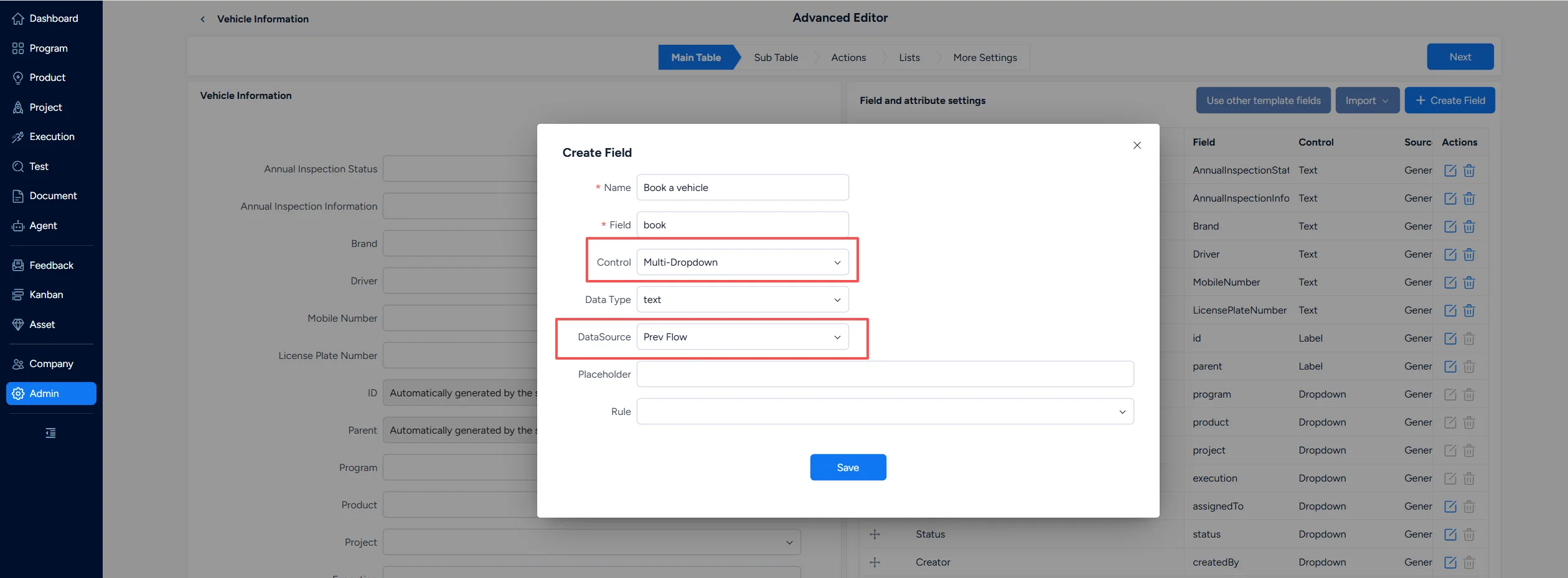
- Prev Flow is used for foreign-key fields when this workflow is a downstream workflow.
- Category is used for category-based options. Built-in data sources can also provide product, project, story, task, bug, and other system data.
Default: Sets a default value for the field.
Rule: Selects a rule configured in Workflow Rules.
Note: Built-in fields cannot be edited or deleted.
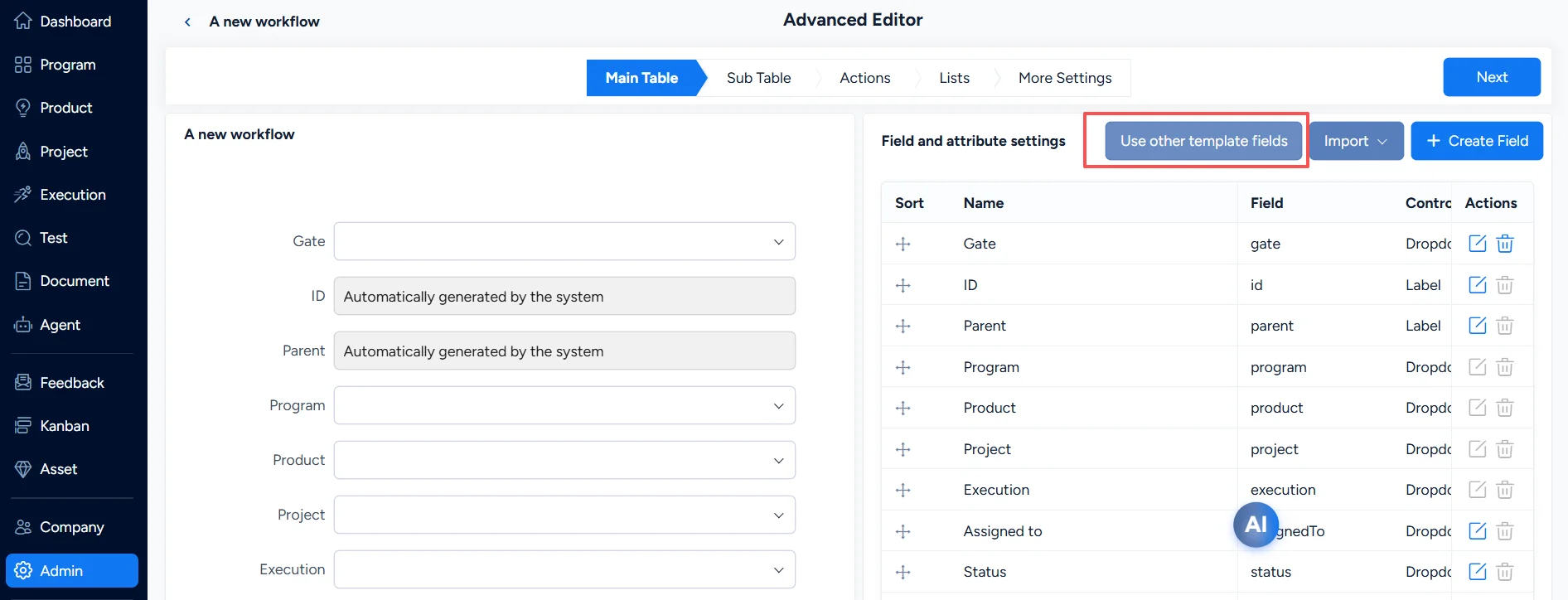
1.2 Use Other Template Fields
Note: If the workflow is set to Specific = Product, Project, or Execution, it is automatically applied to process templates. Fields created in different process templates are not synchronized. Click Use other template fields to select fields created in another template.
- For the same object, field names and field codes cannot be duplicated across process templates.
- Both the workflow and the reused fields must use the same data structure where applicable, and dependent fields should already exist.
Example: After Template 1 creates Field A:
- Field A can be referenced by other templates, but it cannot be modified there. It can only be modified in Template 1, and changes are synchronized to the other templates.
- Other templates can only remove the association with Field A; they cannot delete the field.
- Template 1 can delete Field A. Once deleted, the field is also removed from the other templates.
- Only when the field is Dropdown, Multi-Dropdown, Radio, or Checkbox and its data source is Custom can another template edit the data source and configure a new set of values. Key-value pairs cannot be duplicated. For example, a software template can set Story Type to 1/2/3, while a hardware template can set it to 3/4/5.
2. Sub Table Design
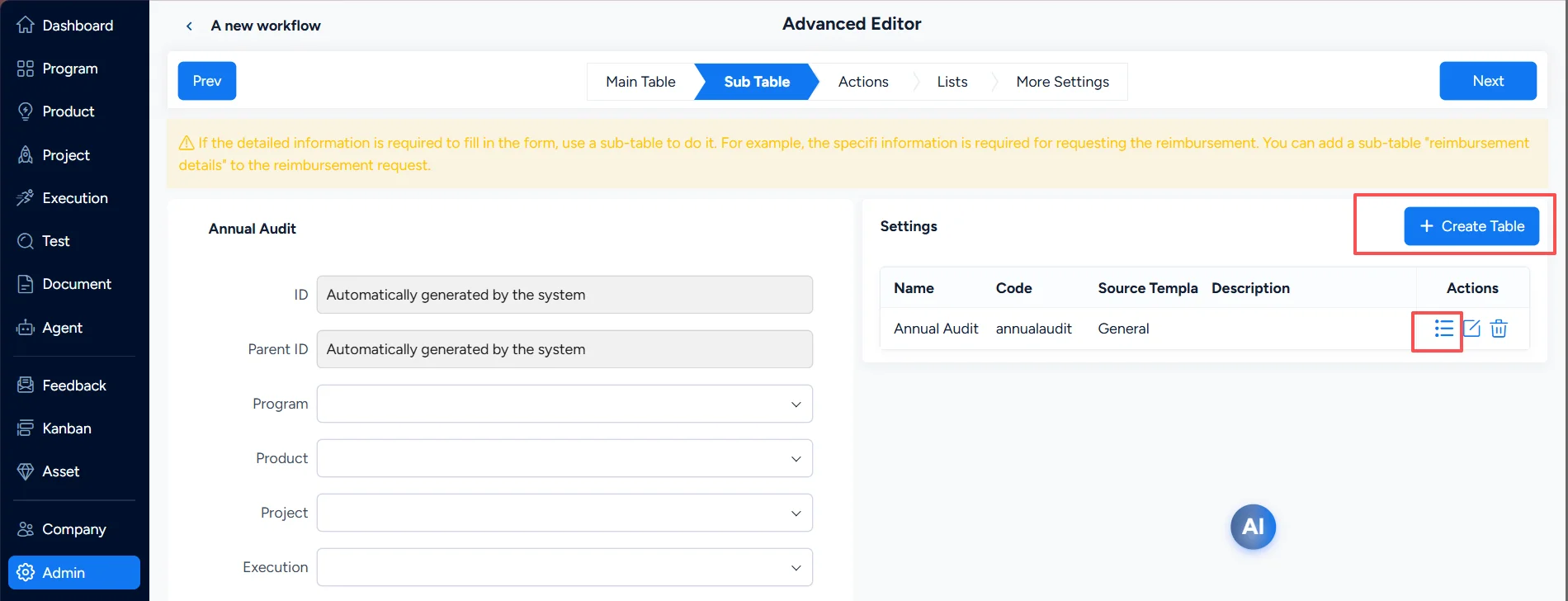
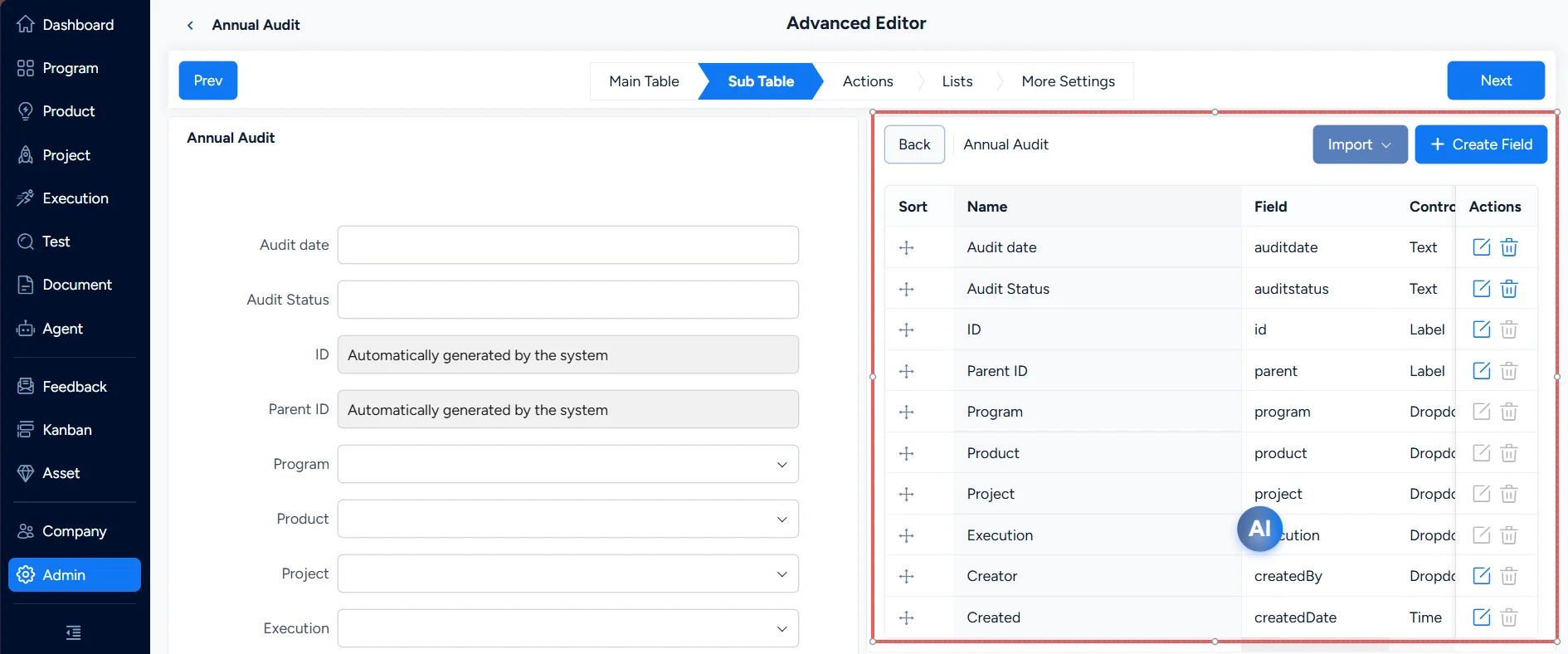
Use a sub table when a main form needs to record multiple detail rows. For example, in a procurement workflow, a request may include multiple purchased items. Similarly, a referral may include multiple resume entries, each with a company, start date, end date, and other fields.
In Sub Table, click Create Table to add a sub table. The system creates a database table named flow_<code>. Click the field icon to configure the sub-table fields, using the same field settings as the main table.
Example: Add Vehicle Information > Annual Audit.
3. Action Design
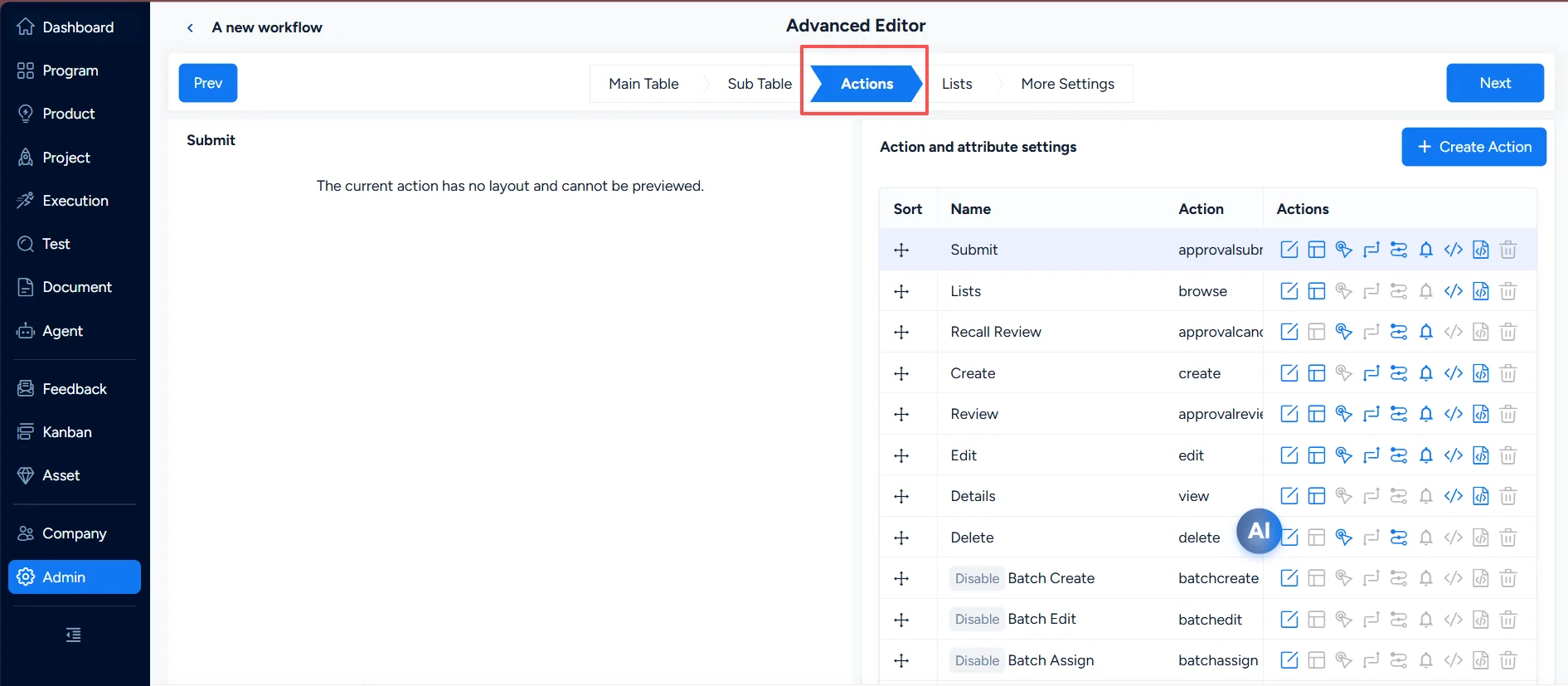
Built-in actions include Create, Read, Update, Delete, Import, Export, Report, Link, and Remove. Enable an action to turn on the corresponding capability. The Link and Remove actions are described below.
After Link is enabled, a link control appears on the detail page. Users can link records from tables generated by other workflows. Linked records appear in corresponding sections on the detail page, and multiple tables can be linked. After Remove is enabled, users can remove linked data.
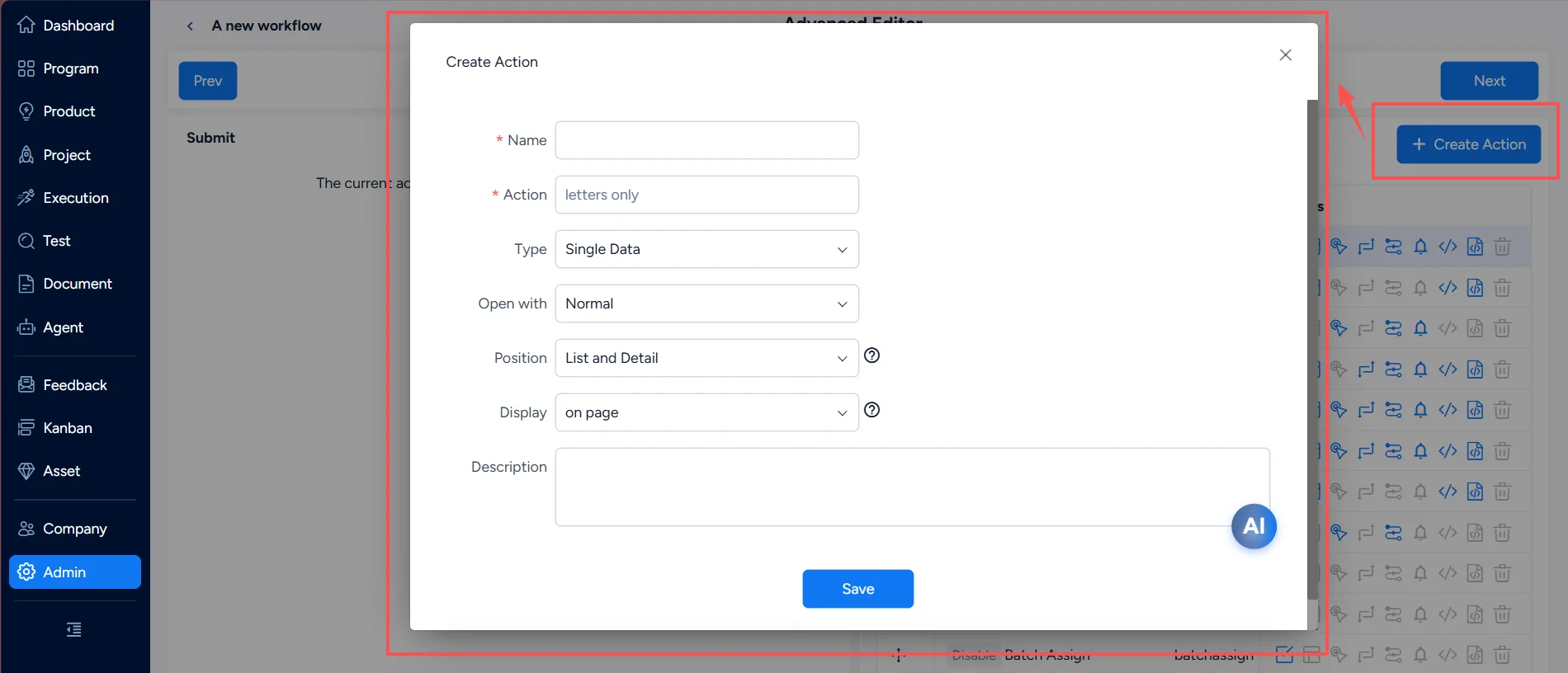
3.1 Create / Edit Actions
Note: After you add an action, the main table automatically generates the Action By and Action Time fields, so you do not need to add these fields in Main Table Design.
- Action Type: Select Single Data or Multiple Data for batch operations.
- Open with: Select Normal for a standard page, Modal for a pop-up window, or None for actions that require no input page.
- Position: Select List Page, Detail Page, or List and Detail.
- Display: Select on page to show the action directly in the actions column, or in dropdown to place it in a more menu. The dropdown option helps avoid an overly wide actions column when there are many actions.
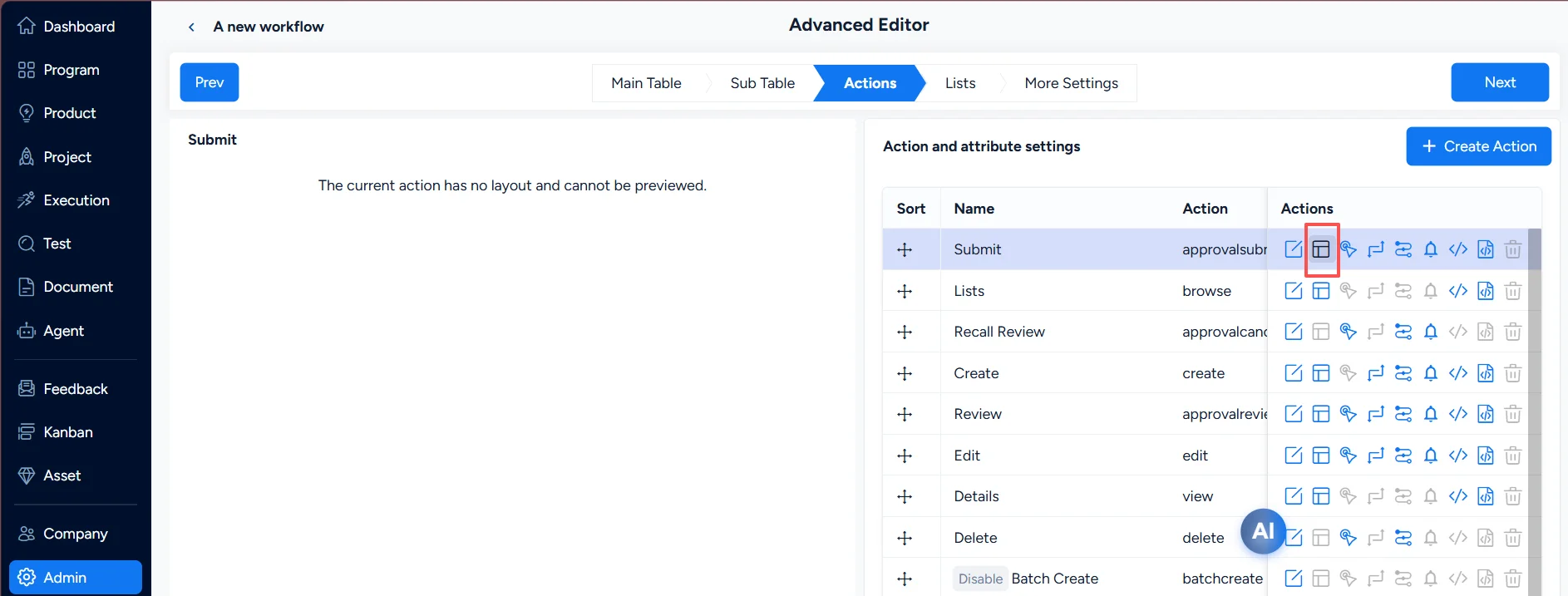
3.2 Layout
Layout configures the content displayed for each action. Click Layout, you can maintain the fields and controls shown on the action page.
- Click a field or use the show/hide controls on the right to determine whether it appears in the action layout.
- Drag fields to change their order.
- Width defaults to Auto. Enter a number to set a custom field width.
- Rule selects a predefined validation rule for the field when the form is submitted.
- Default Value sets a common value when the page opens, reducing user input.
- Readonly makes a field non-editable when it only needs to display information.
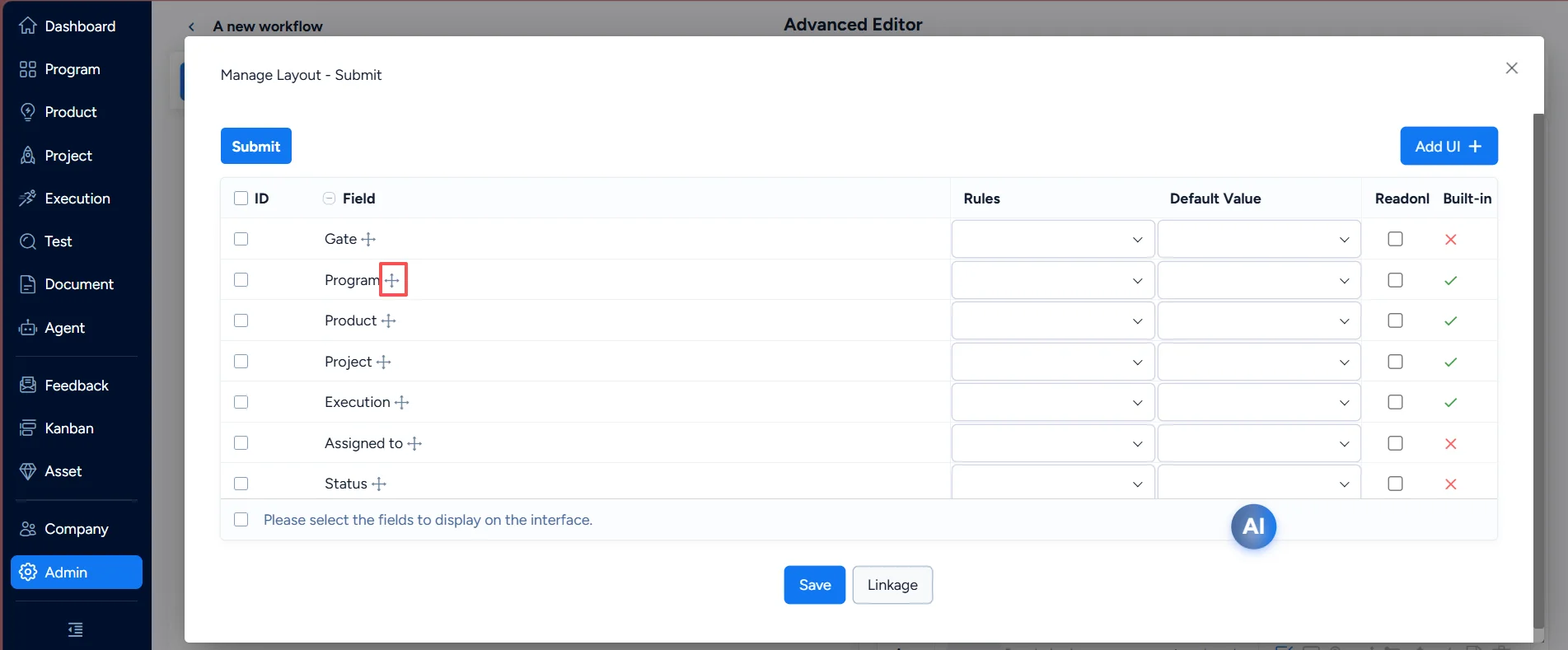
Note: If the workflow contains sub tables, the main-table fields include an additional field with the same name as the sub table. To display sub-table fields on the page, show both the sub-table fields and the same-named sub-table field.
If the workflow has a Prev Flow, you can display its fields as read-only values when the foreign-key field is shown.
The Details layout is slightly different: you must set field positions. Basic Info and Details are provided as the default blocks. You can replace the Basic Info block label with custom block labels to create multiple blocks and tabs.
3.3 Linkage
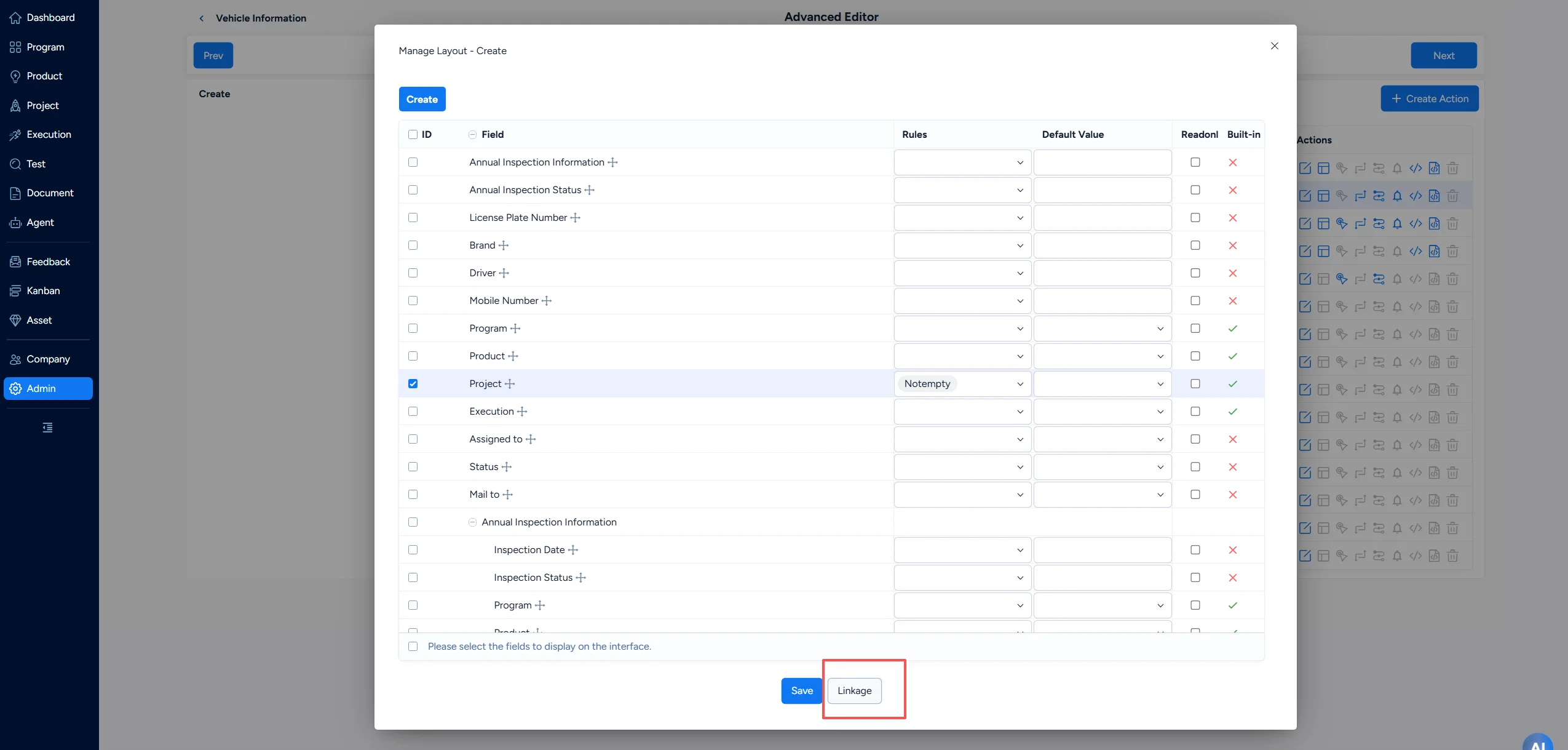
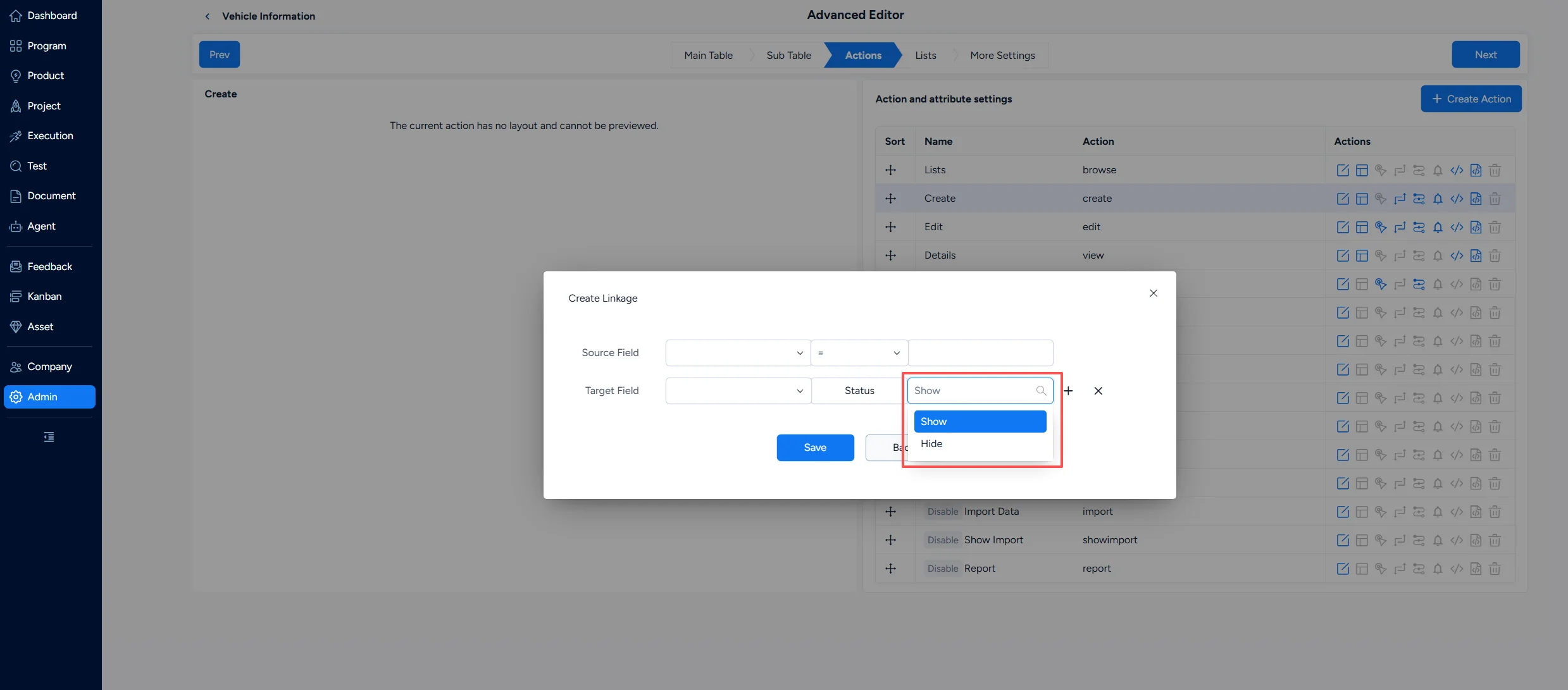
Linkage controls field visibility based on another field's value. For example, when Usage Type is Stamping, Stamping Time can be shown and Borrow Time hidden. When Usage Type is Borrowing, the behavior can be reversed. The Source Field and Target Field come from the fields displayed in the action layout.
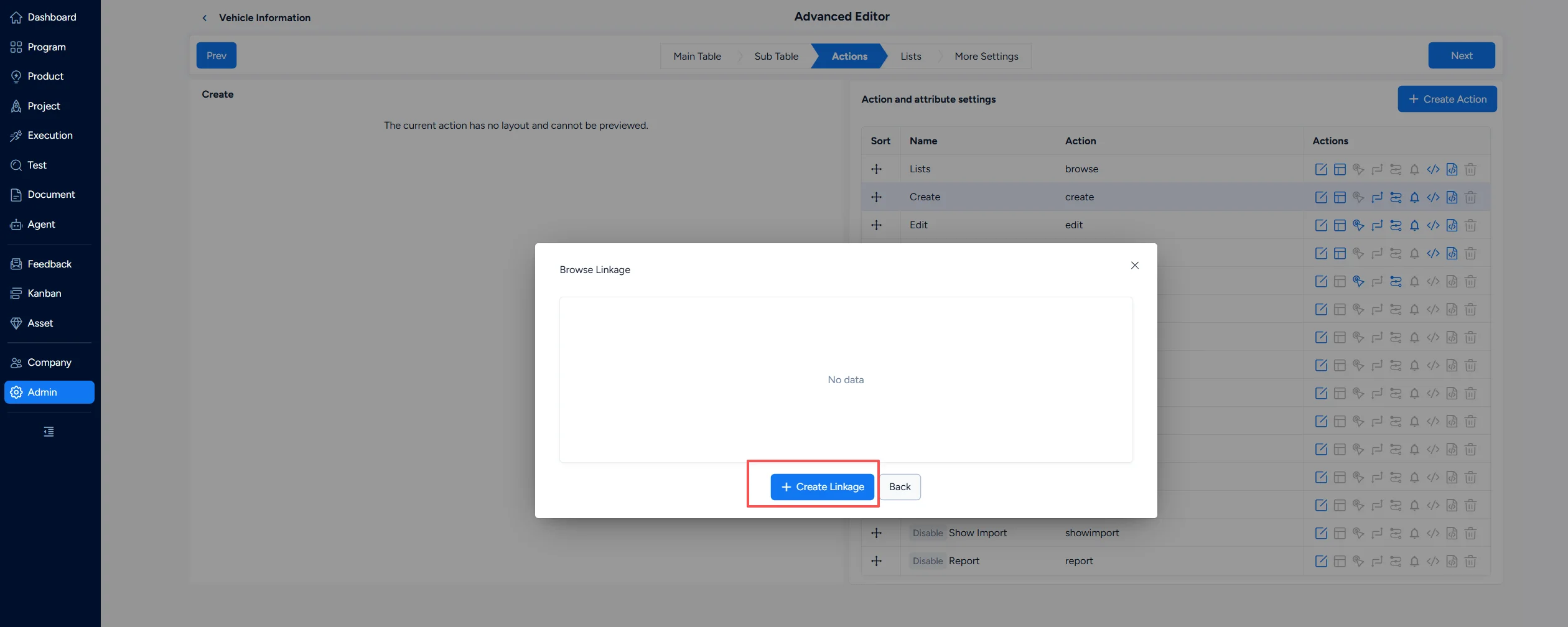
Open the action's Layout, then click Linkage at the bottom of the page to configure linkage rules. Each rule contains a Source Field, an operator, a value, and a Target Field whose Status is set to Show or Hide.
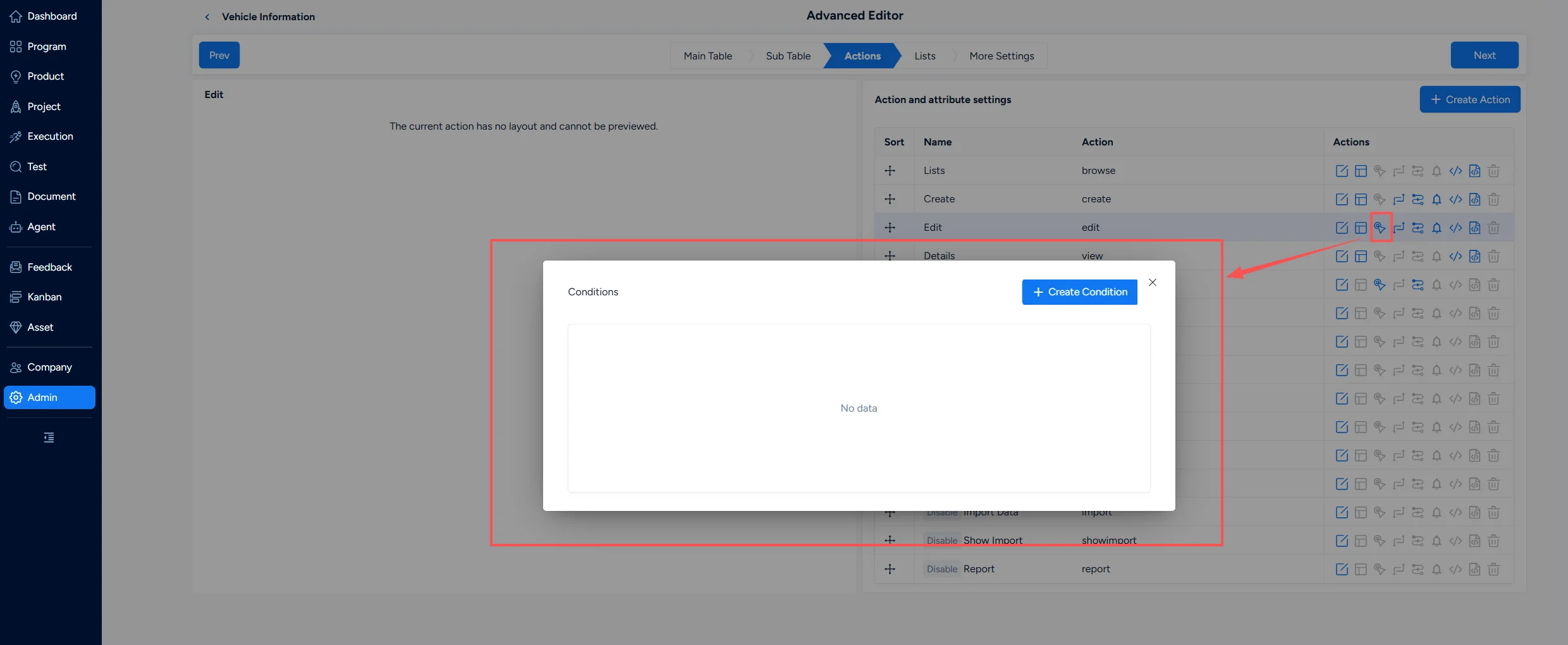
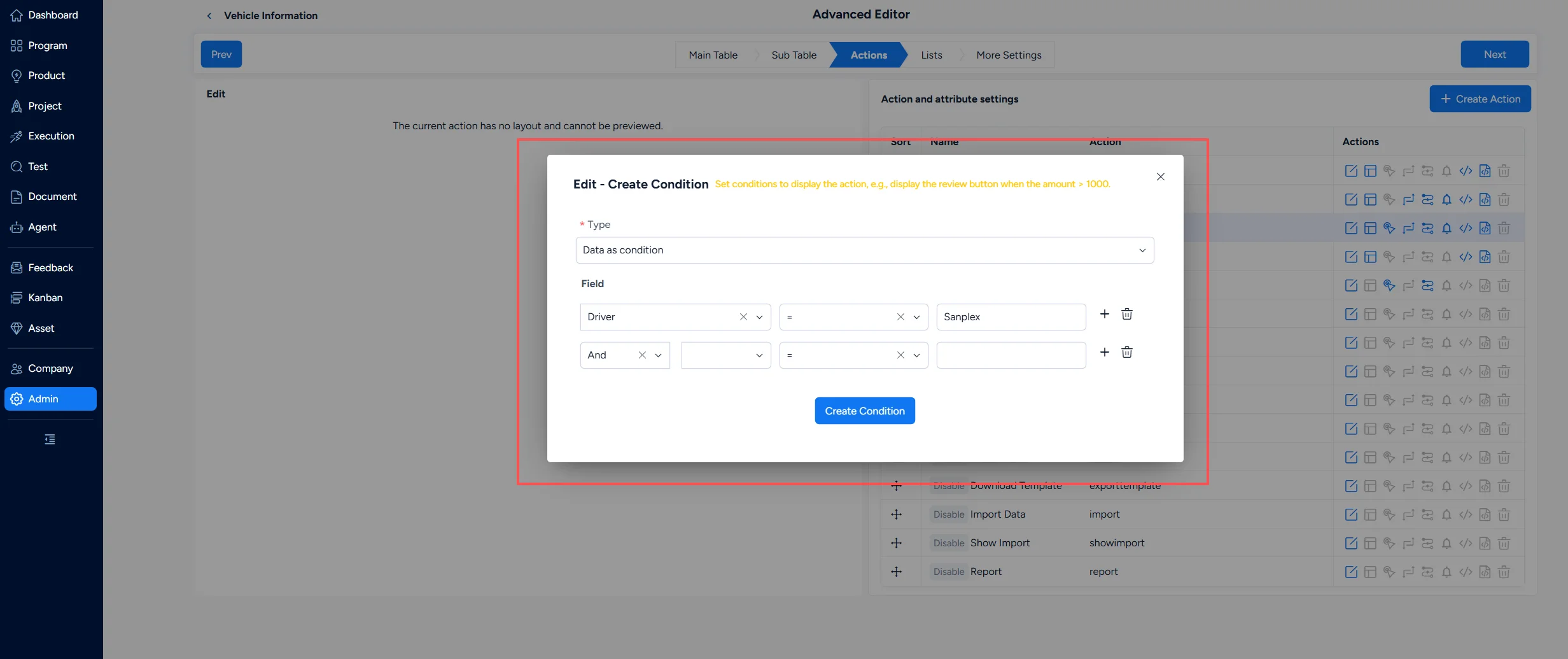
3.4 Condition
A Condition sets when an action is displayed or available. For example, an action can be available only when Status = Wait and the current user is the reviewer. Conditions can also be defined with a custom SQL query.
3.5 Extended Action
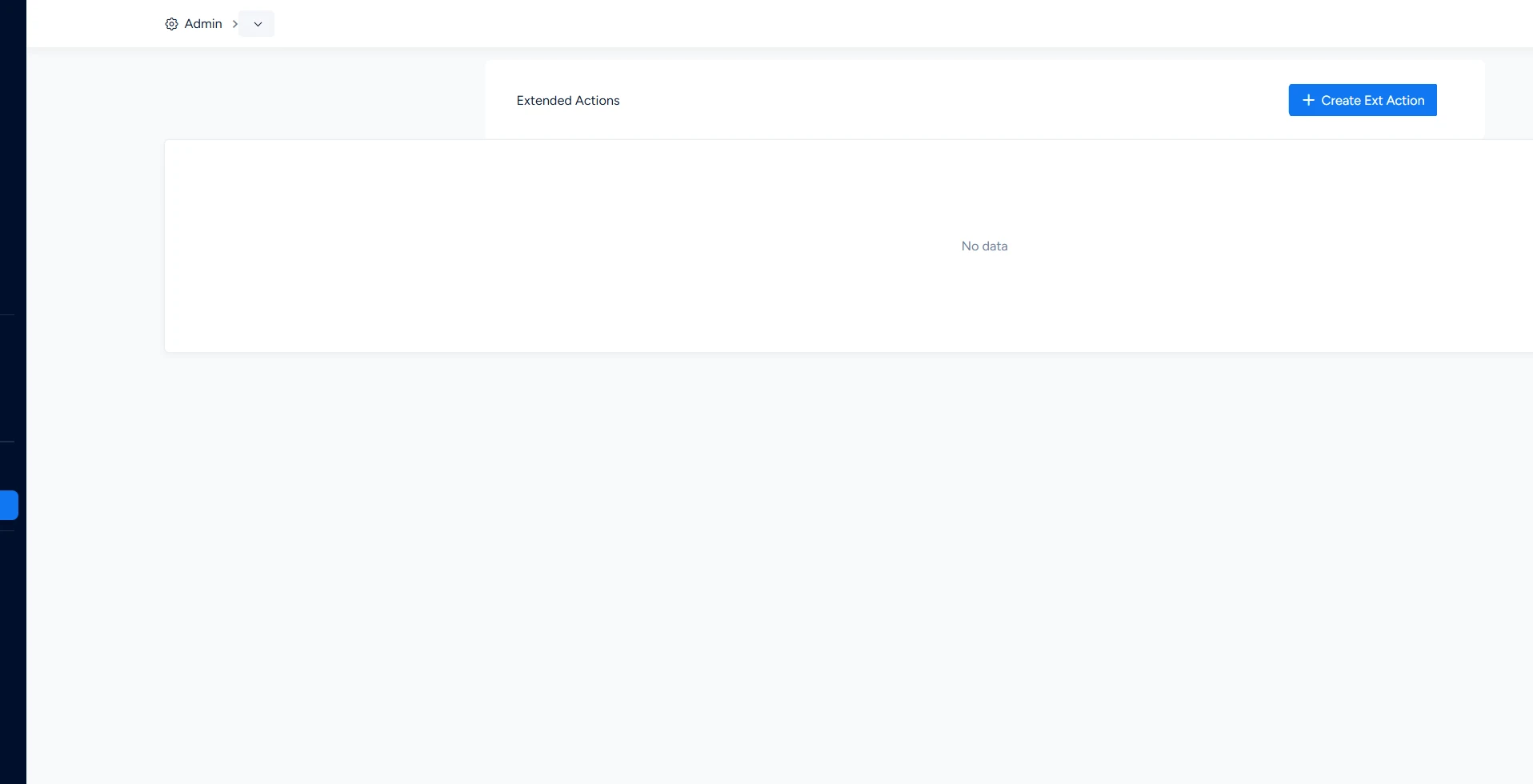
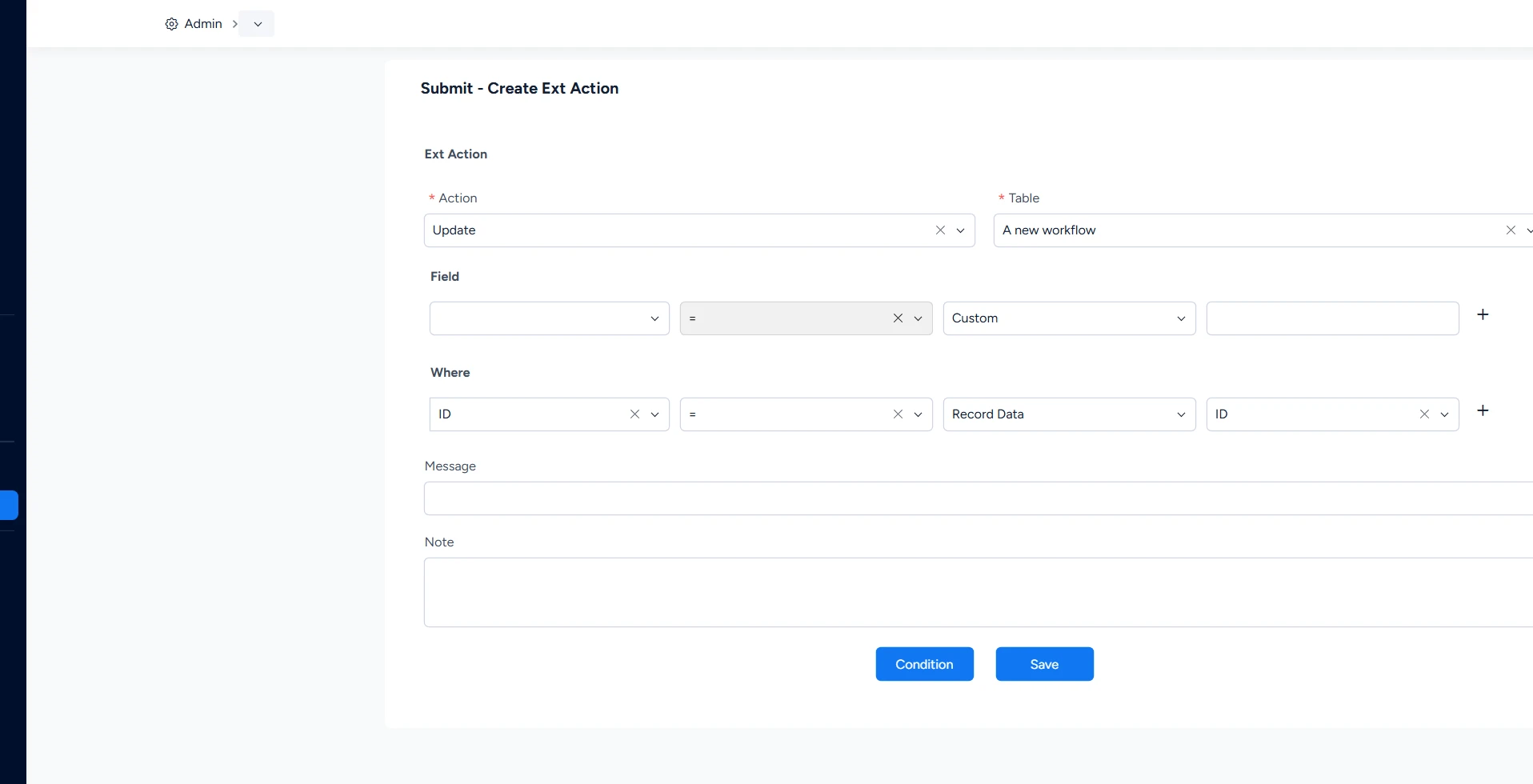
An Extended Action is an operation associated with an action and performed after it finishes. Extended Actions also support conditions. If no condition is configured, the Extended Action executes unconditionally. The condition is evaluated before the main action executes, not after.
Extended Actions can create, update, or delete records in a table. For Create, required fields must be populated and restricted fields must meet their requirements. For Update and Delete, conditions should generally be configured; otherwise, the operation may affect all records.
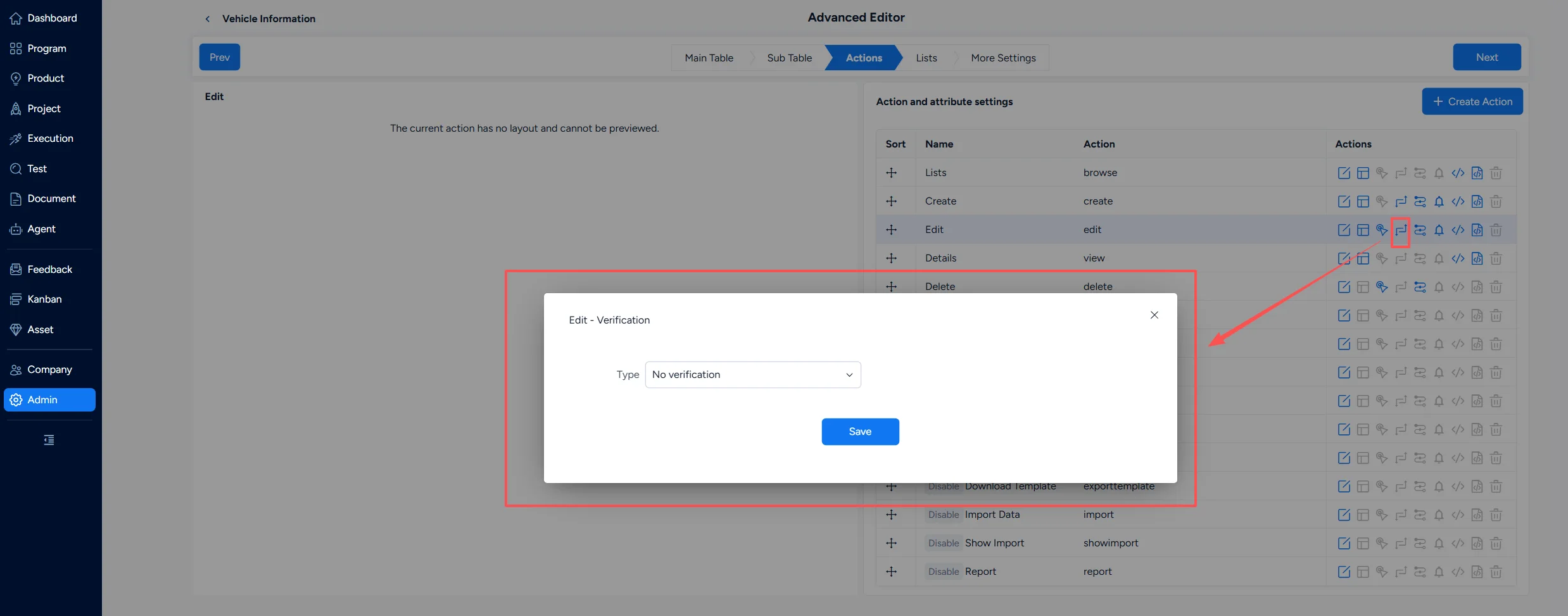
3.6 Verification
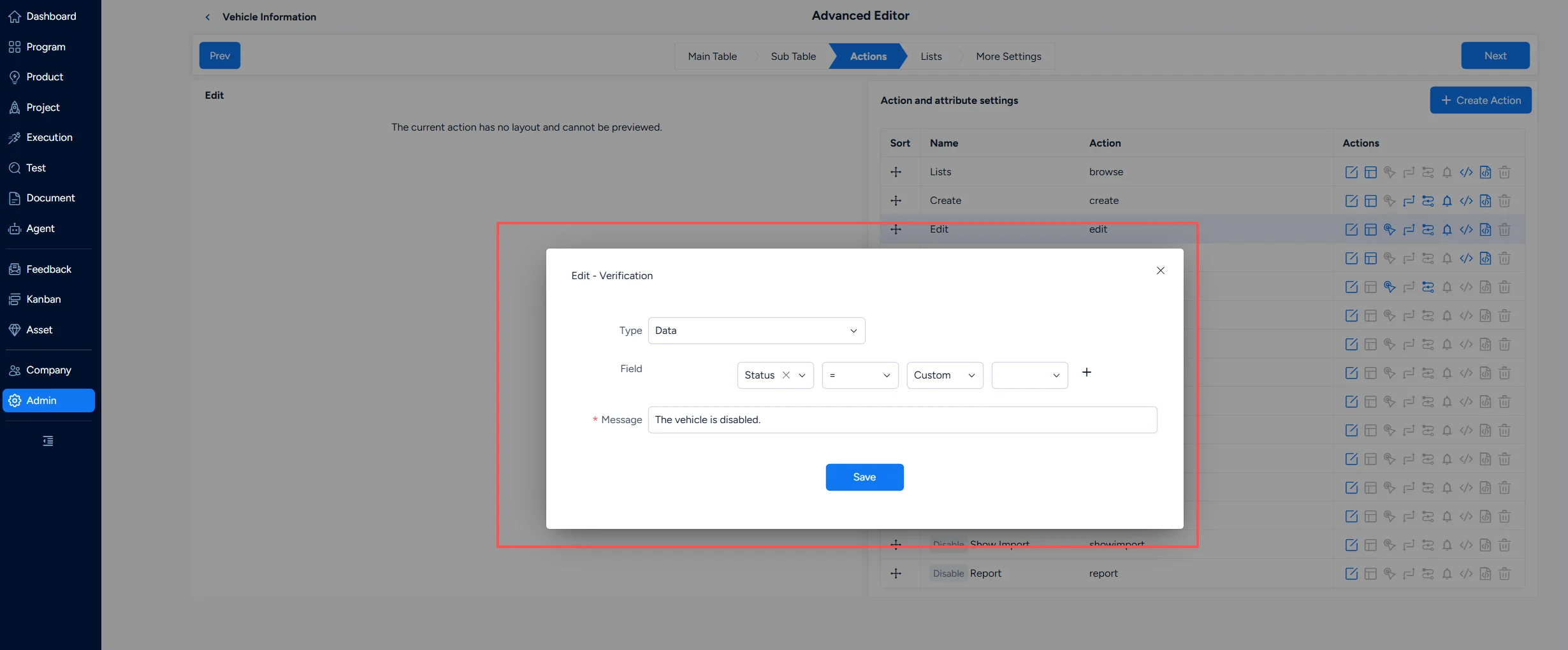
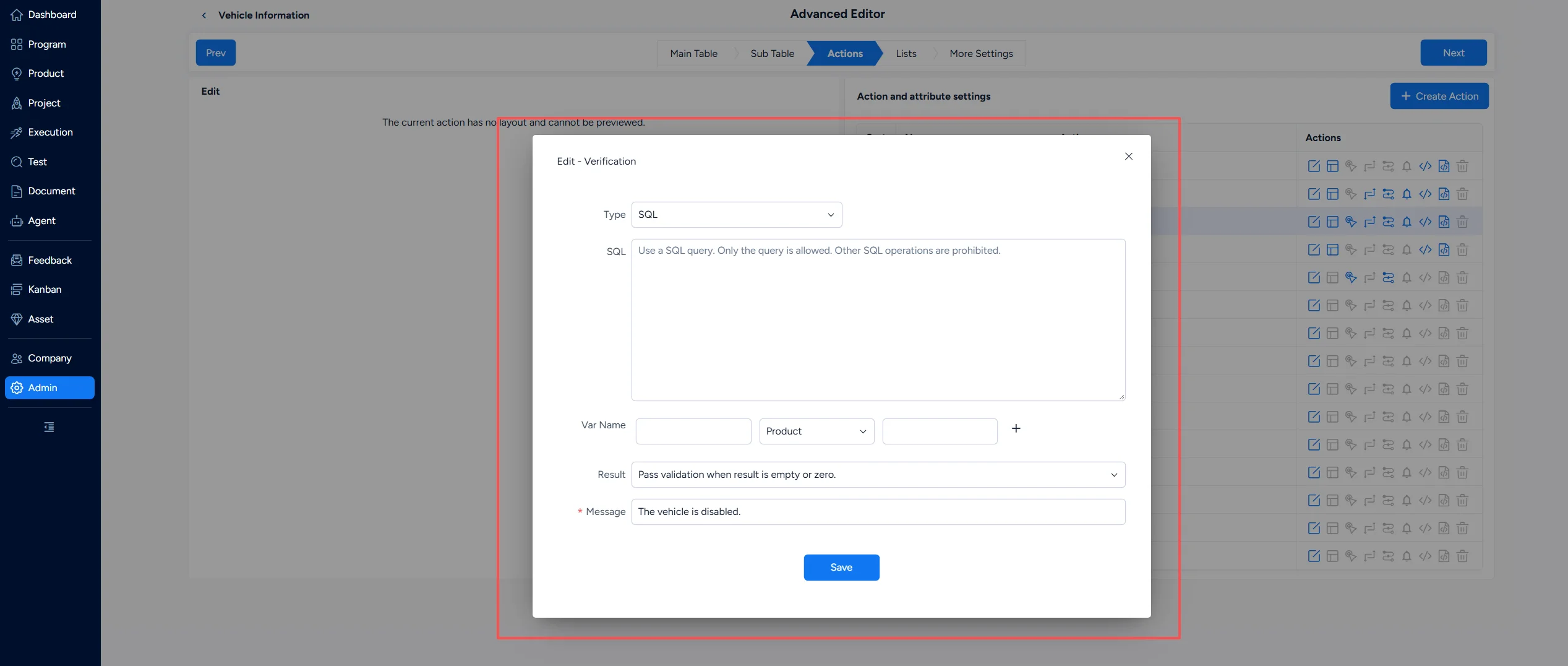
Verification is mainly used for scenarios such as checking whether a requested vehicle has already been borrowed. When the configured verification condition is met, the form will not be submitted.
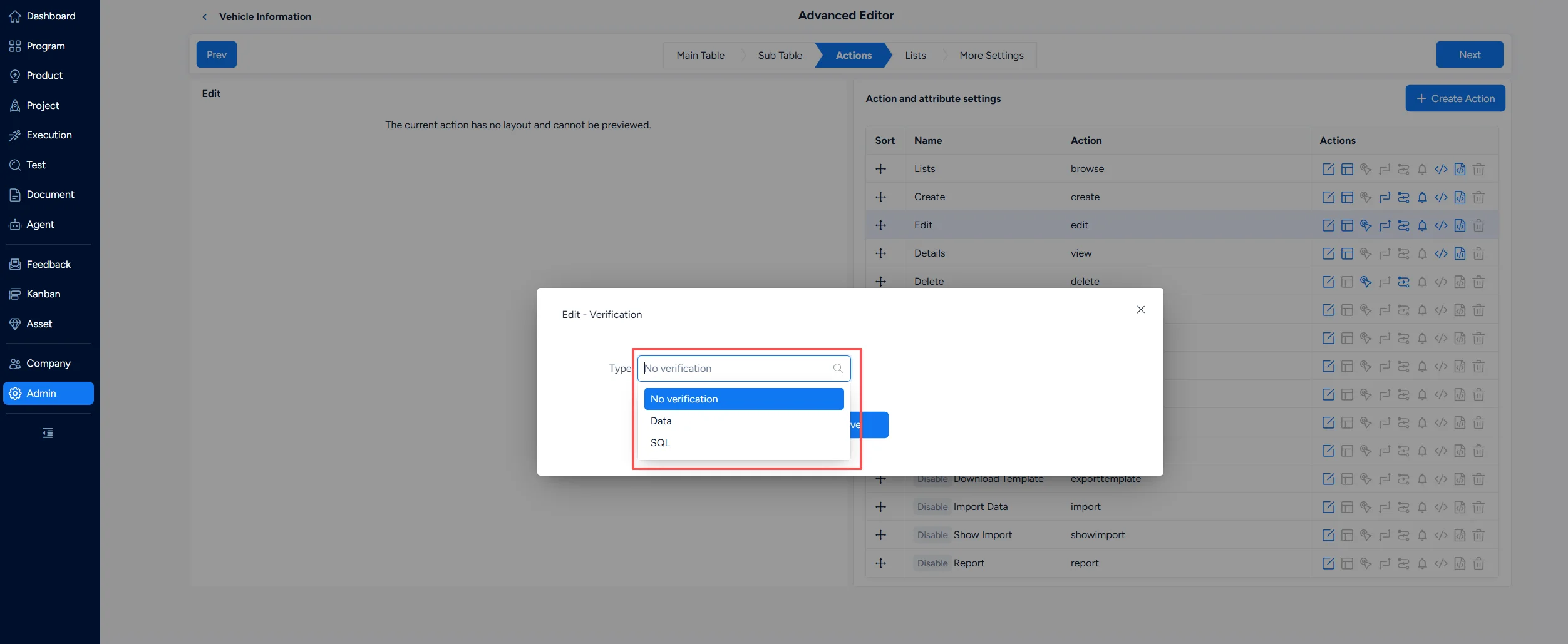
On the Verification page, select a verification type:
- No verification: No verification is performed.
- Data: Verify field values against a configured condition.
- SQL: Verify values with a custom SQL query.
Add a verification rule, define the condition, and enter the Message shown when verification fails.
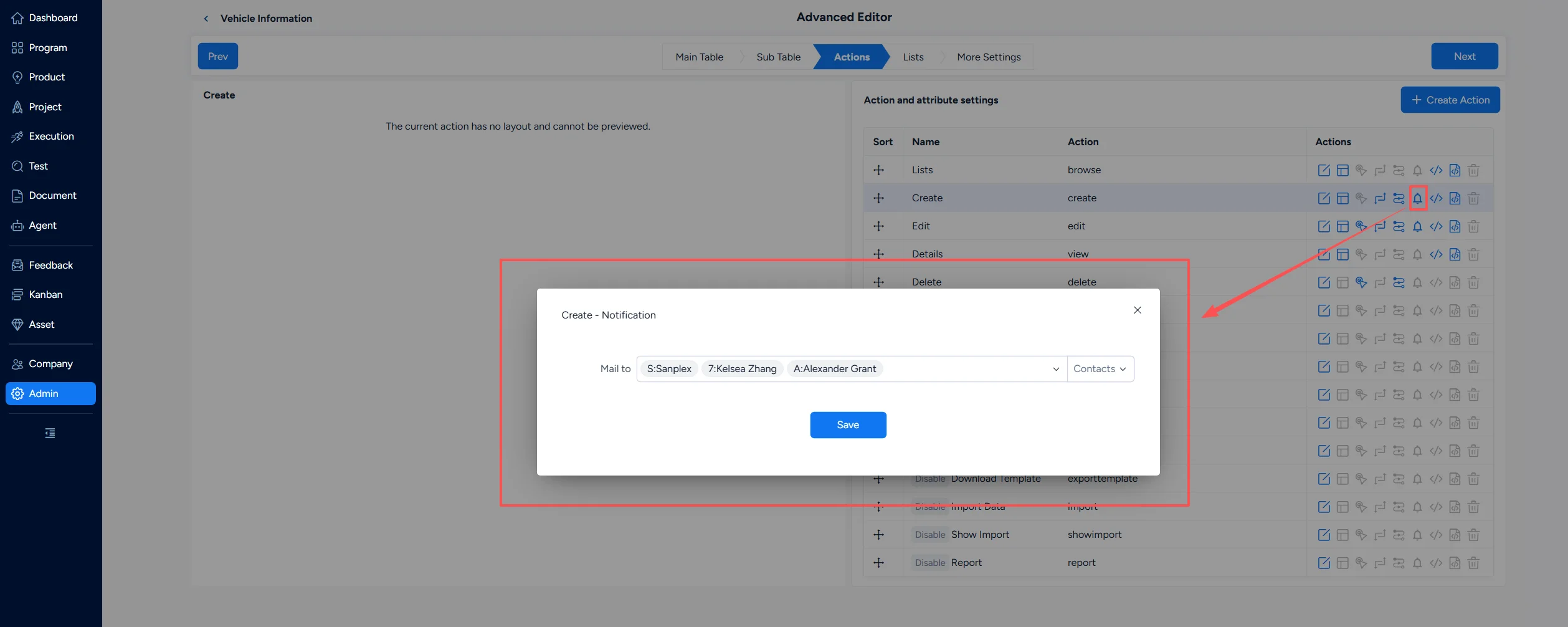
3.7 Notification
Notification sends pop-up or email reminders to relevant users after an action is executed. Use Mail to to select users or contacts who should receive the notification.
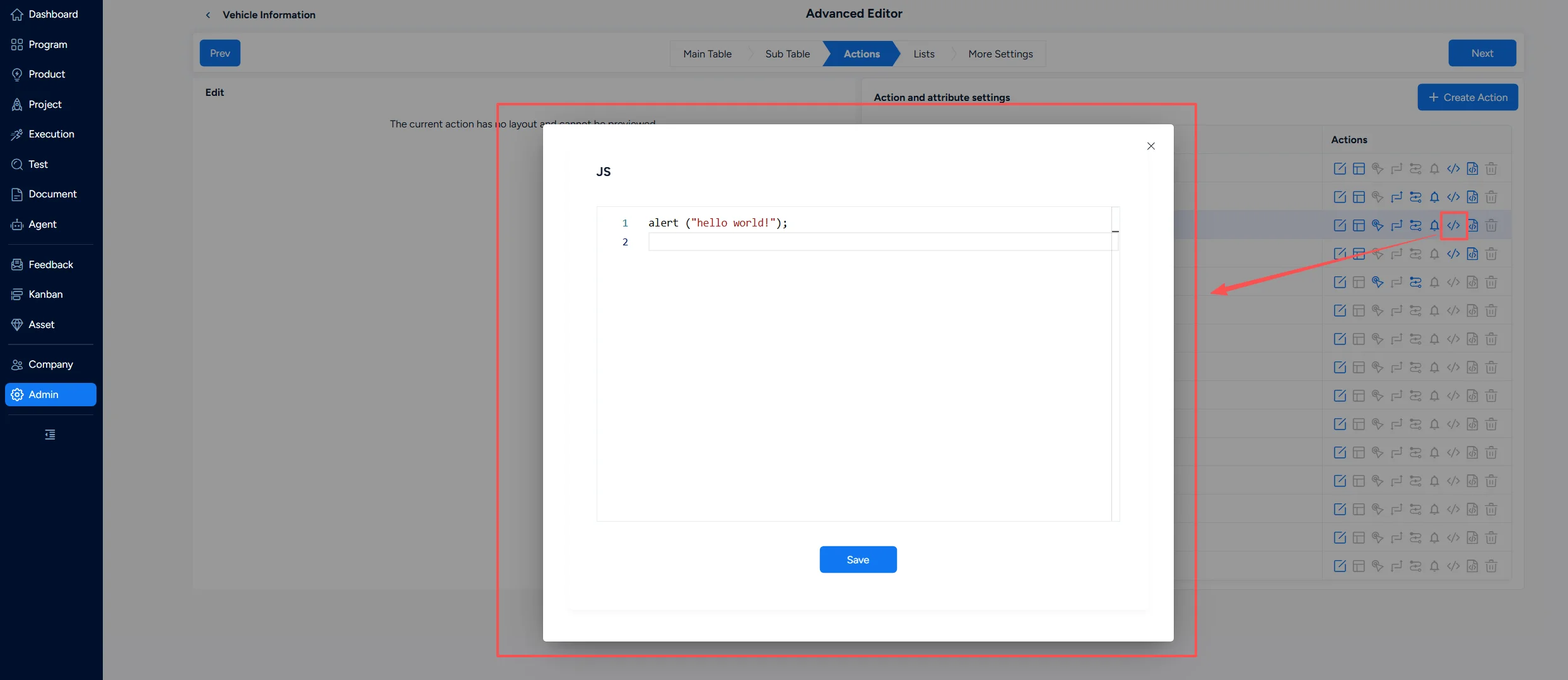
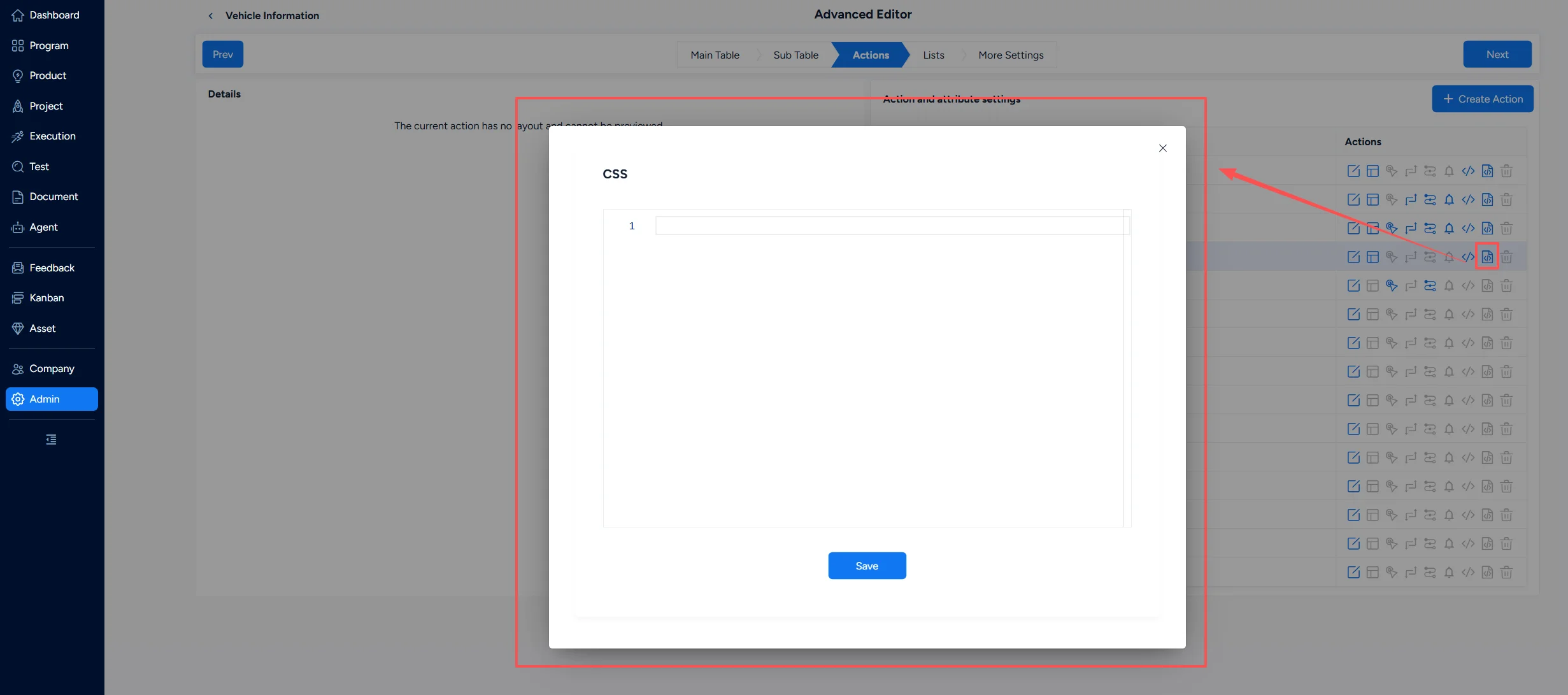
3.8 JS / CSS
You can customize styles and interactions with JavaScript and CSS. The JS and CSS configured for an action apply only to that action's page.
4. Lists
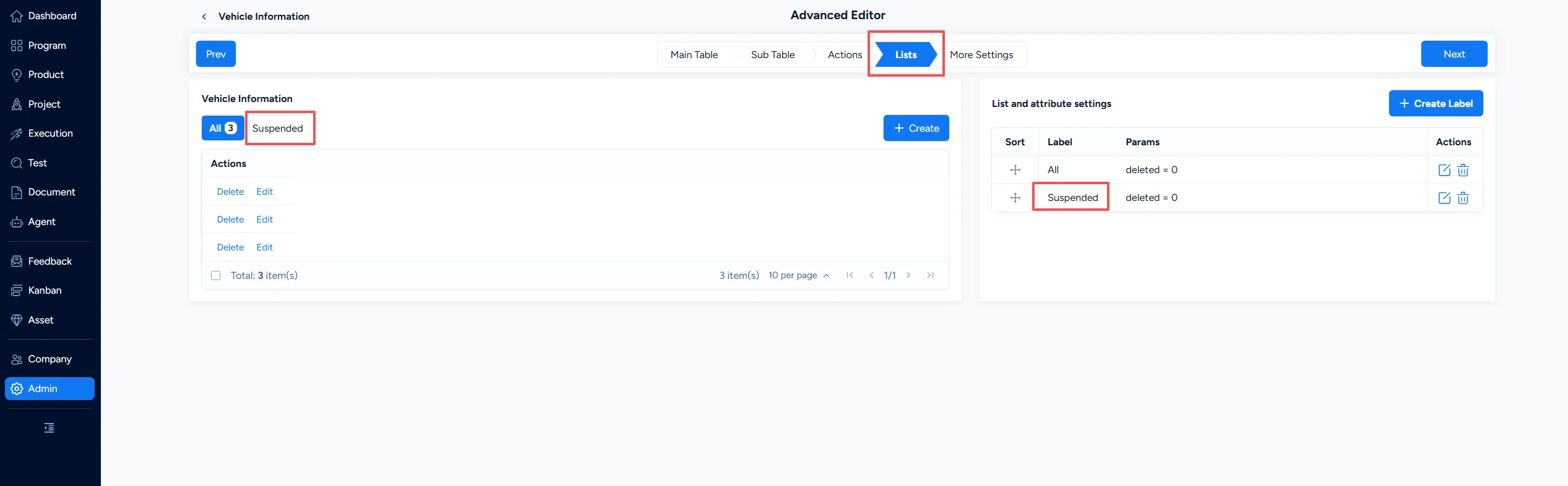
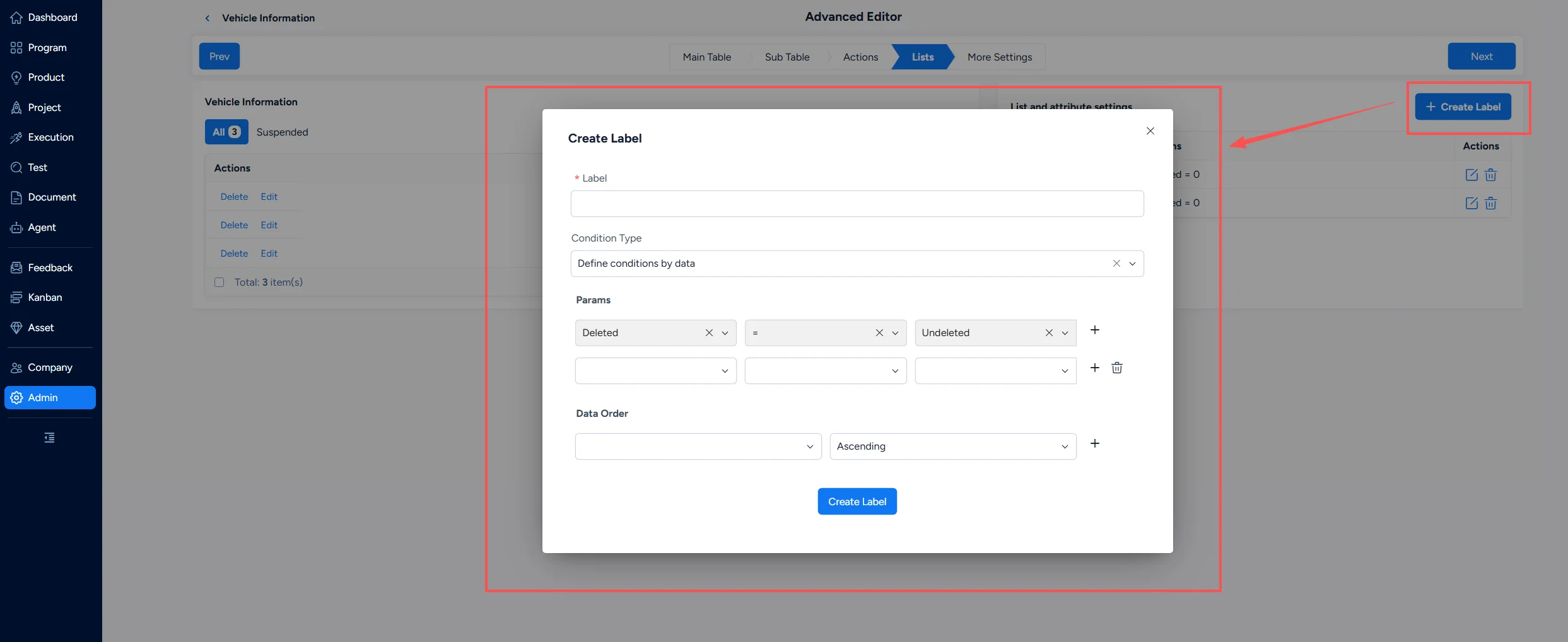
A List is a tab on the workflow list page. Configure query conditions to determine which records appear under each tab. After you set access permissions for a List, you can control which users can browse the data associated with it.
In Lists, click Create Label to add a tab. Configure the Label, Params, condition type, and data order.
5. More Settings
5.1 Relations
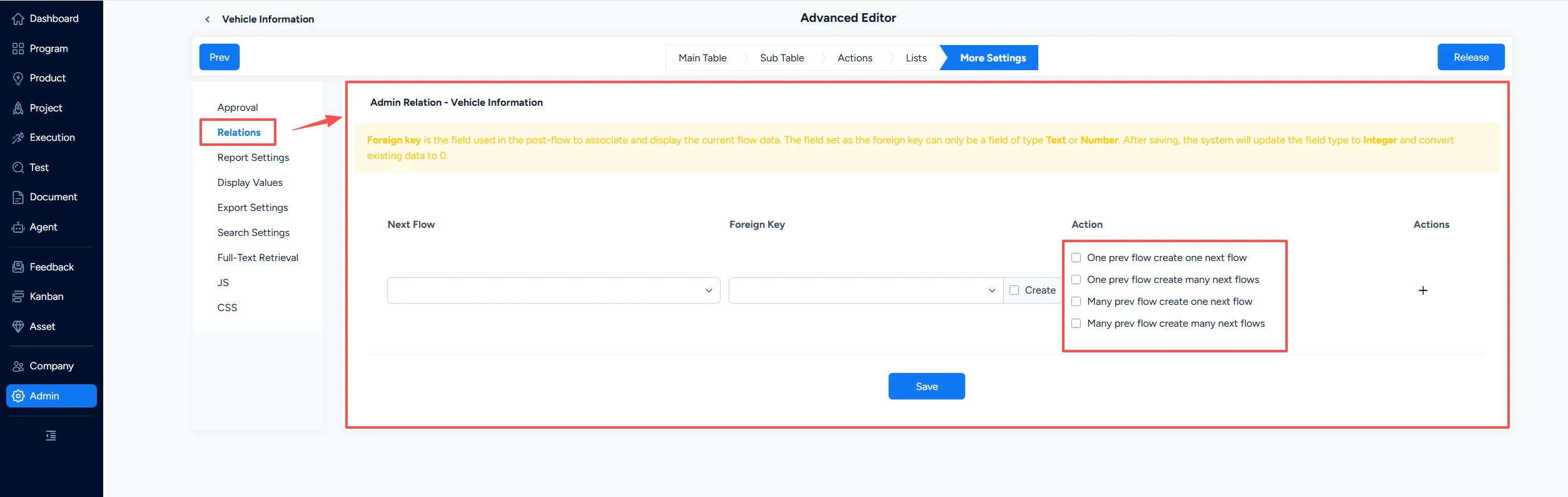
Relations connect an upstream workflow and a downstream workflow. For example, a Vehicle Information workflow can precede a Vehicle Booking workflow. Users first maintain vehicle information, then select an existing vehicle when creating a booking. Recruitment Management and Referral Management are similar upstream/downstream scenarios.
Configure Relations in the upstream workflow. In the downstream workflow, the foreign-key field control should be Dropdown or Radio, and its data source should be Prev Flow.
Select the Next Flow, Foreign Key, and the relationship actions that define how upstream and downstream records are associated.
5.2 Report Settings
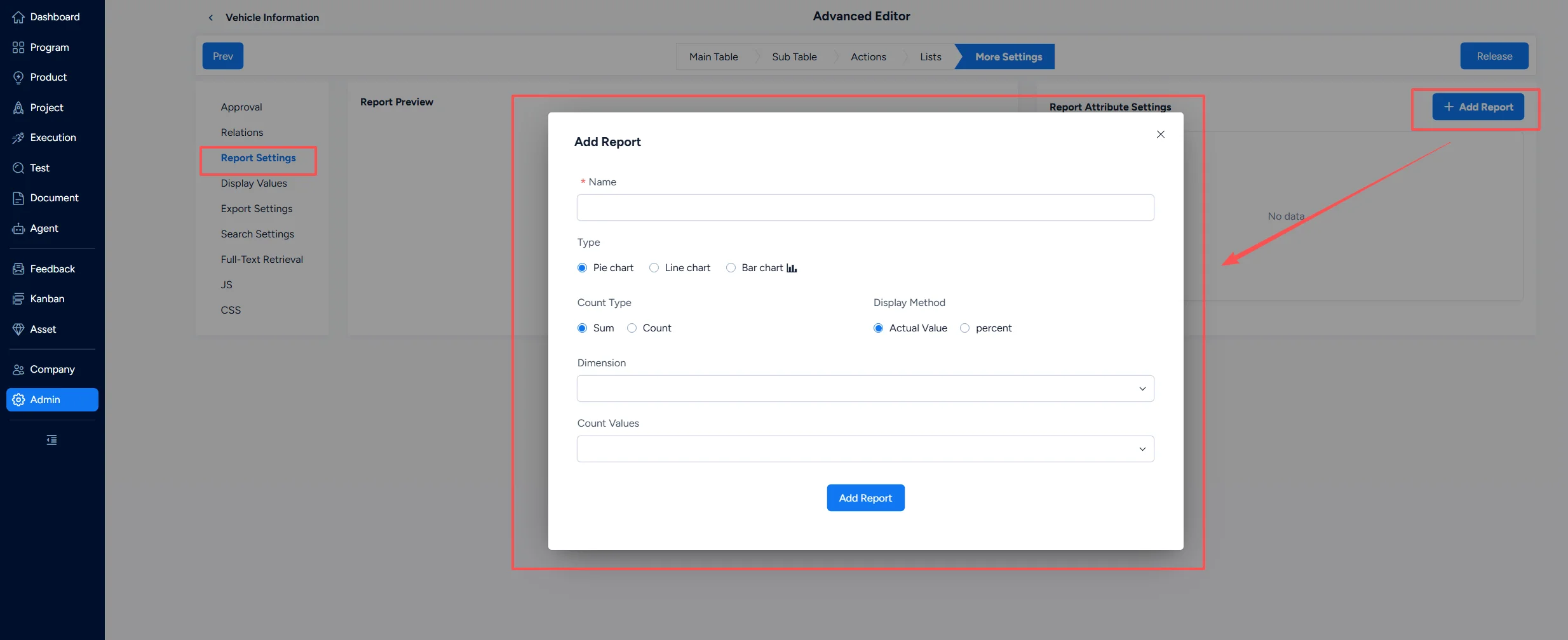
Report Settings lets users analyze workflow data with custom reports. Reports support Pie, Line, and Bar charts. A dimension determines how data is grouped. Statistics can use Count or Sum. Count shows the number of records in each dimension. Sum requires a numeric field and adds the selected metric values for each dimension.
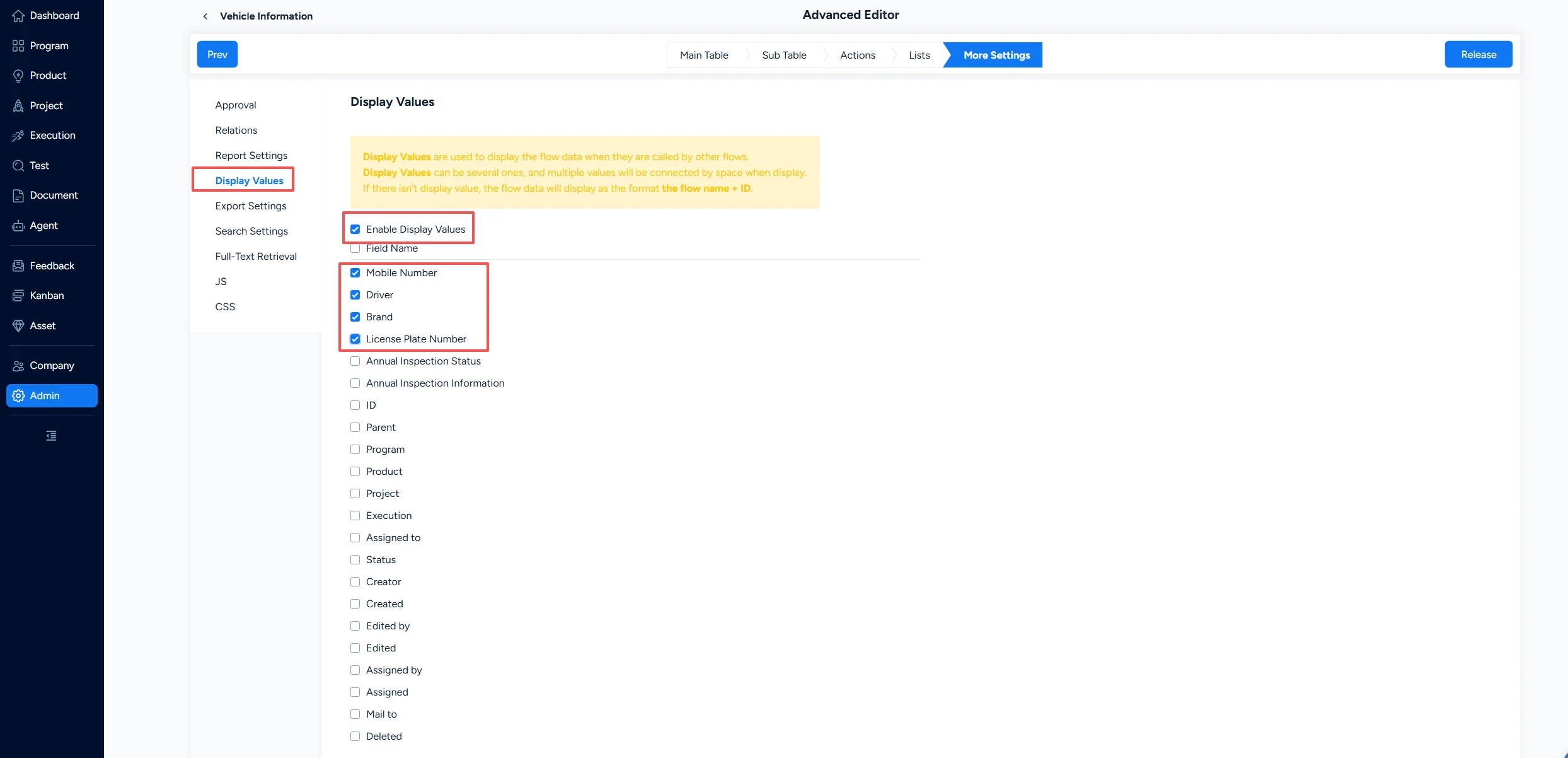
5.3 Display Values
Display Values controls how workflow data is displayed when it is referenced by another workflow. You can select one or more fields; multiple values are separated by spaces. If no Display Value is configured, the workflow displays the workflow name and ID. If a downstream workflow is configured in Relations, enable Display Values so that the downstream workflow can show the selected field values.
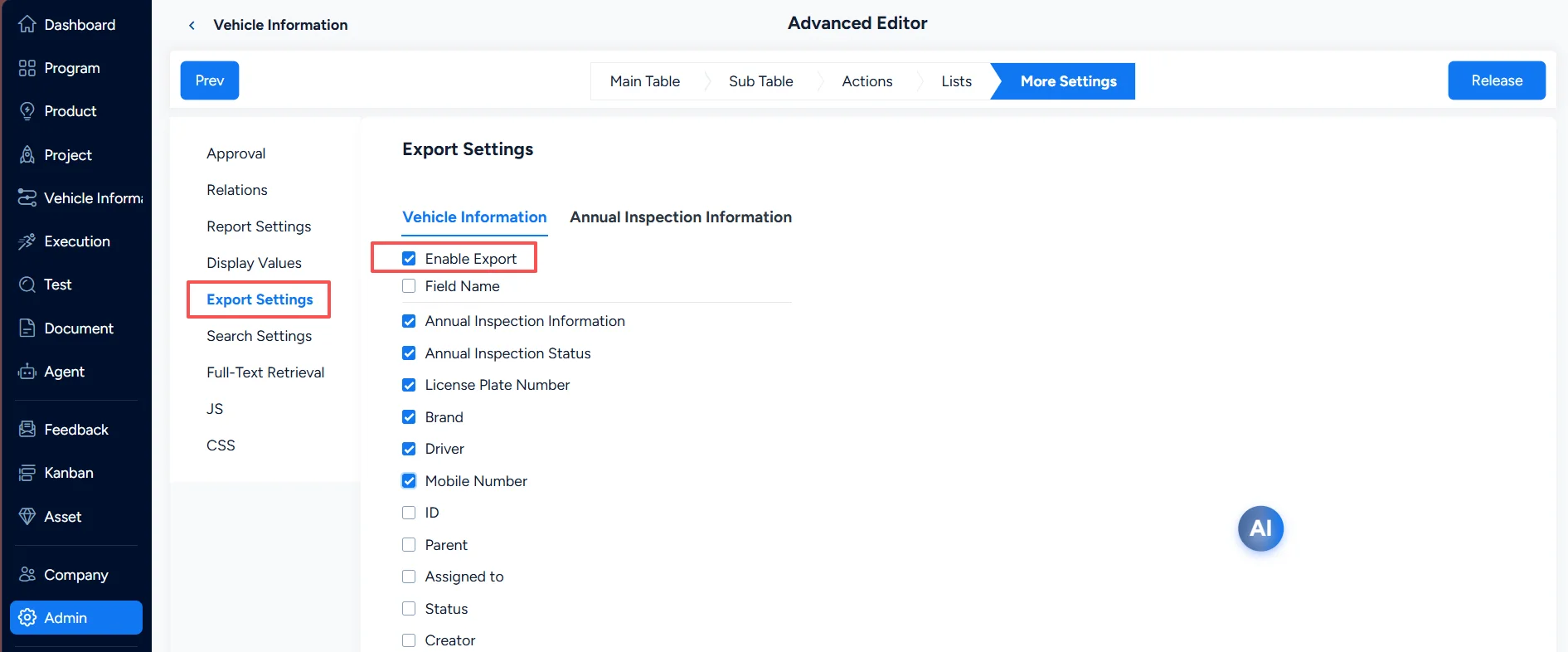
5.4 Export Settings
After the Export action is enabled in Actions, enable Export Settings here and select the fields that users can export.
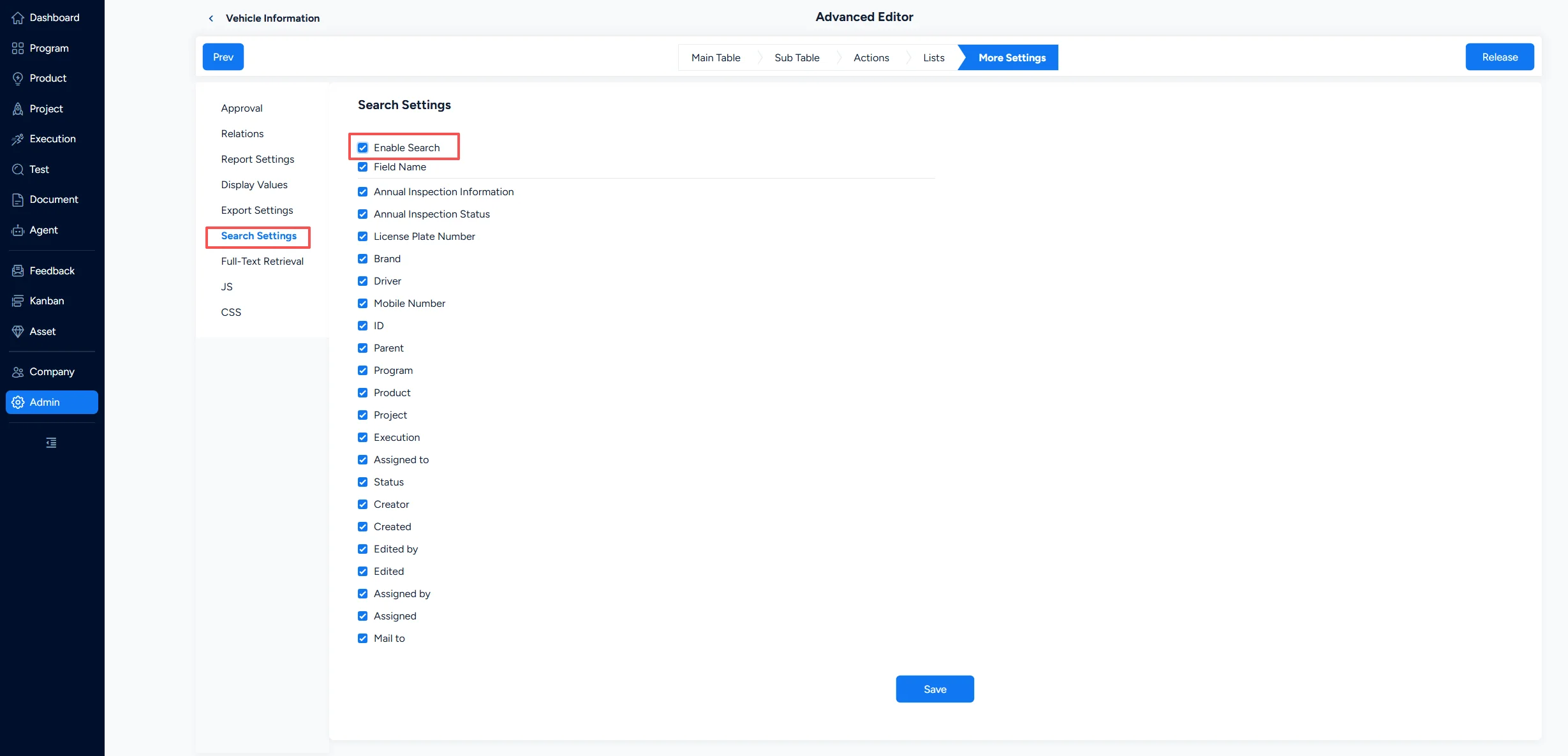
5.5 Search Settings
After search is enabled, users can search workflow data from the list page using the selected fields.
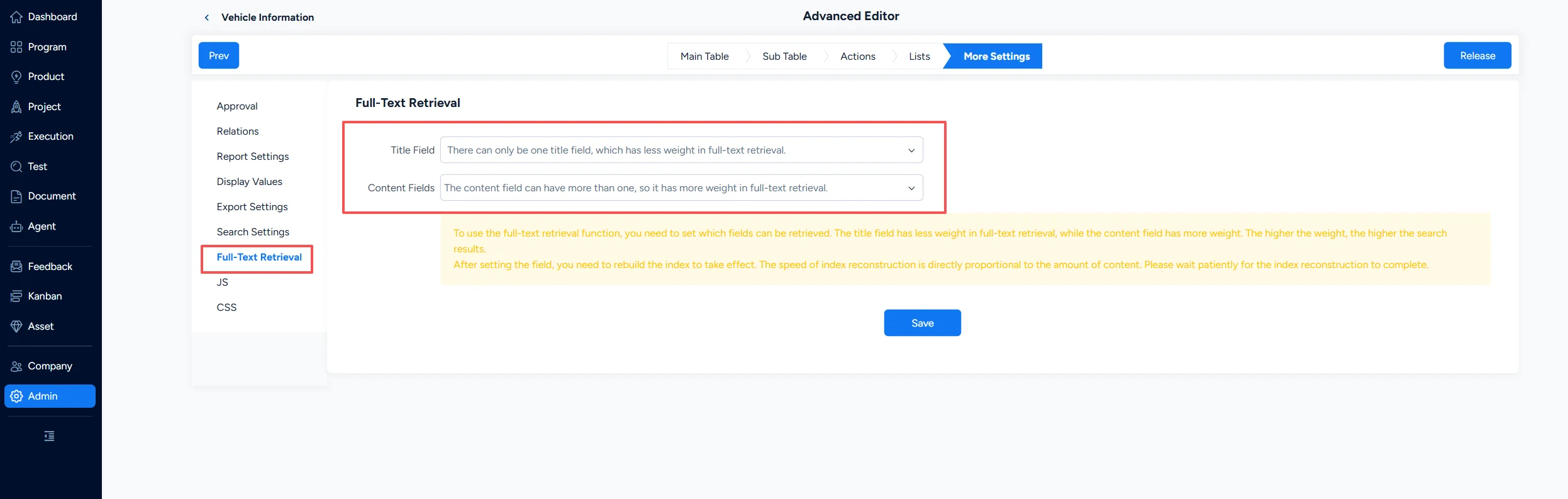
5.6 Full-Text Retrieval
Full-Text Retrieval lets global search include data from custom workflows. Select the indexed fields and rebuild the index for the setting to take effect. Title fields have a higher weight than content fields and appear first in search results.
Note: Rebuild the index only the first time you configure Full-Text Retrieval. Built-in workflows do not have this setting because they are searchable by default.
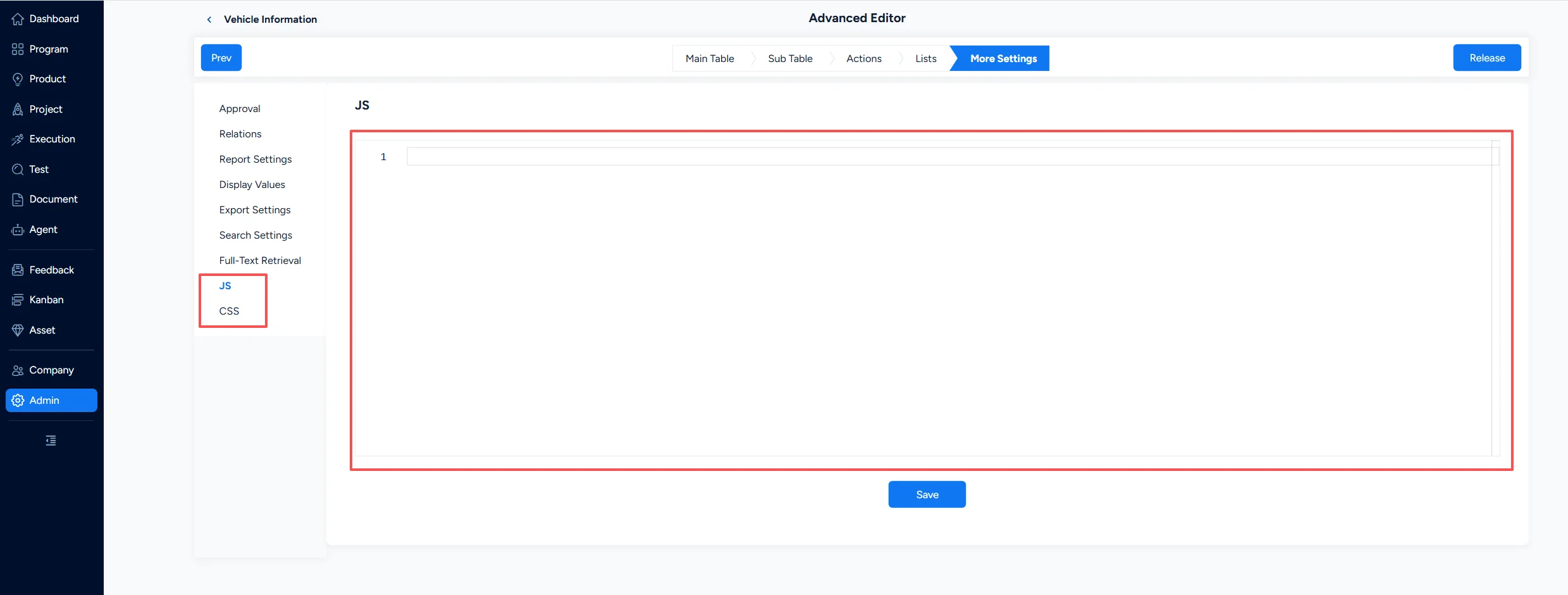
5.7 JS / CSS
You can customize styles and interactions with JavaScript and CSS. JS and CSS configured here apply to the entire workflow and load on all of its pages.
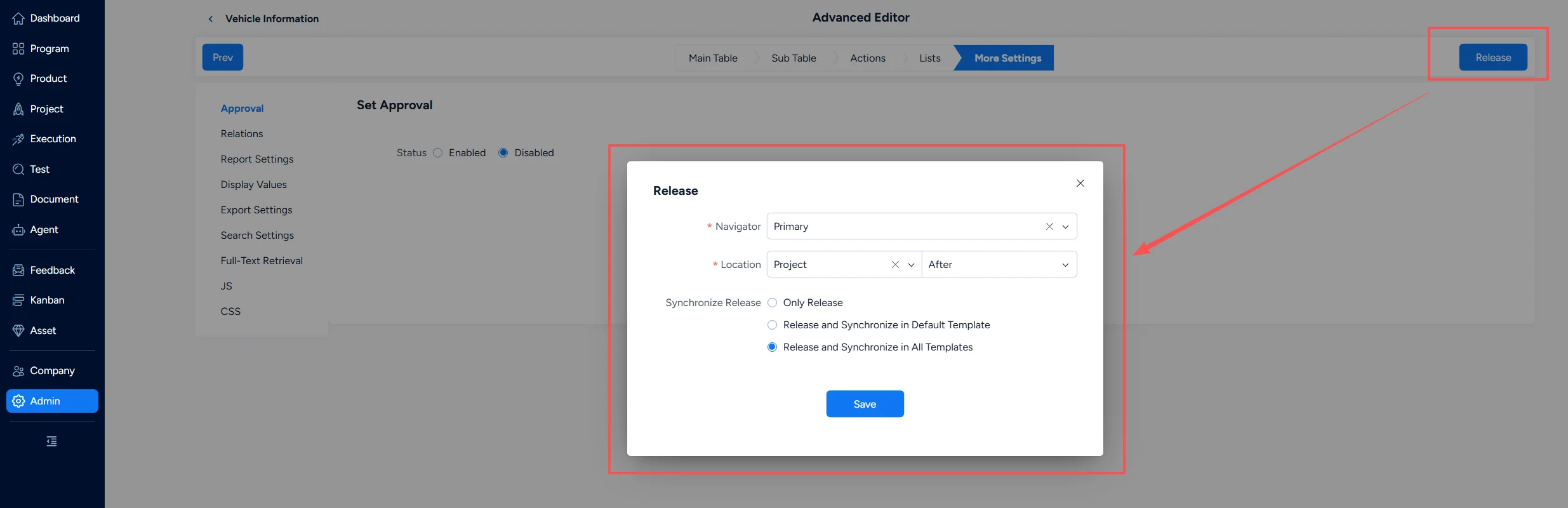
6. Release Workflow
After the workflow configuration is complete, release the workflow so that it appears in the front-end navigation.
- Relevant users must be granted permissions before they can use the released workflow.
- If the workflow is set to Specific = Product, Project, or Execution, it is automatically added to the corresponding process templates, and changes are synchronized with those templates.
IV. Enable / Disable Workflow
1. Disable Workflow
Workflow availability in projects is controlled by the corresponding project flow. Go to Admin > Workflow and click Disable for the target flow. After the project flow is disabled, its workflows are no longer available on the front end.
- Deactivating a project flow also removes all workflows in that template from display.
- For example, if a workflow belongs to Product and appears in all product process templates, deactivating the related project flow removes it from those templates and from front-end product navigation.
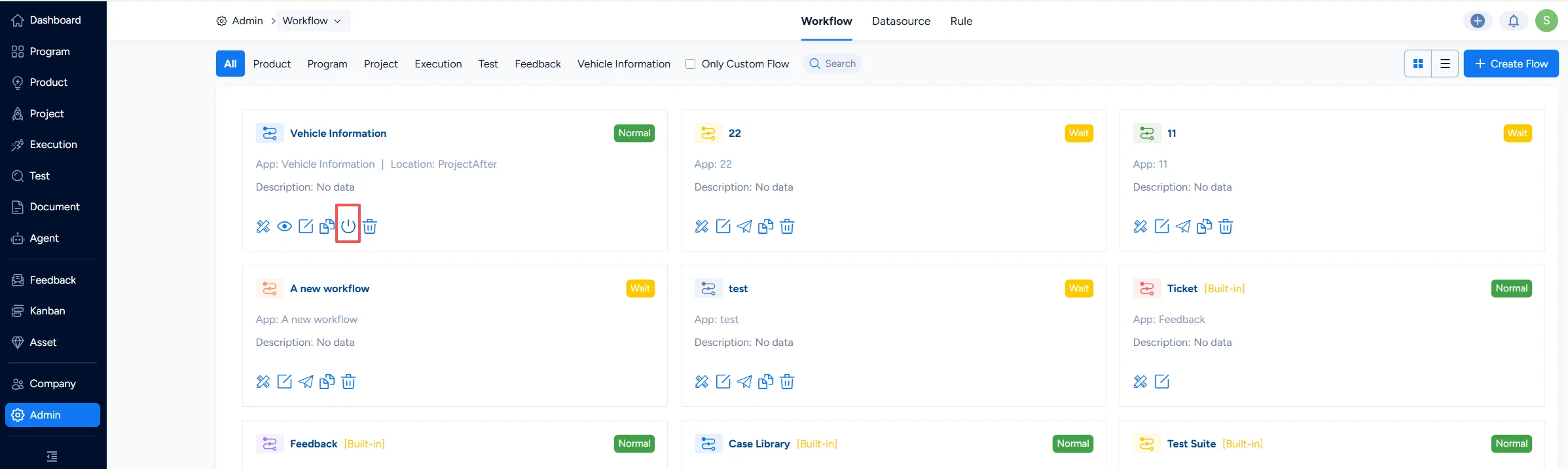
2. Enable Workflow
Go to Admin > Workflow and click Enable for the target workflow.
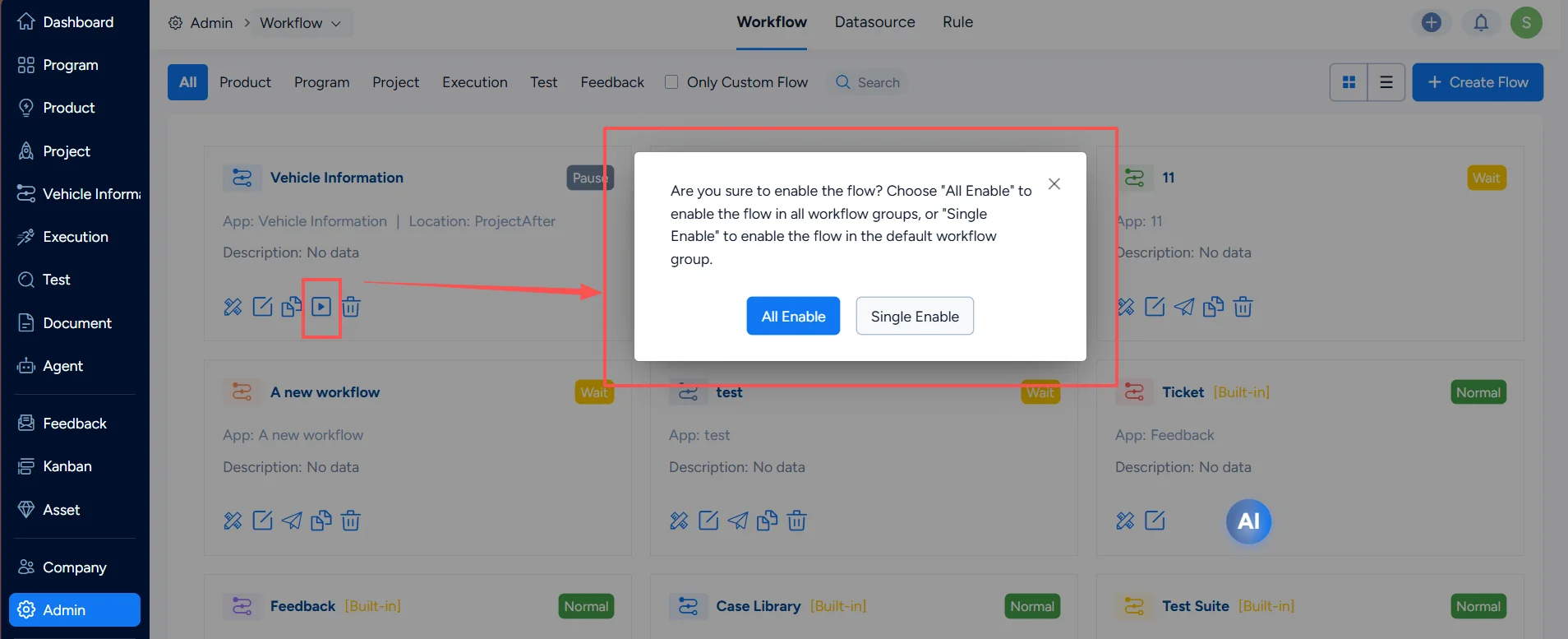
If the workflow is set to Specific = Product, Project, or Execution and also exists in process templates, enabling the workflow will prompt you to choose whether to enable all the workflows in the process template. Users who already have the required permissions can use the workflow directly after it is enabled.
- All Enable: All workflows in the process template will be enabled at the same time, including both general and custom ones.
- Single Enable: Only this object will be enabled on its own; no workflows in the process template will be enabled. The user must enable the corresponding workflows in the process template before they become visible in the front end.